On this page
Prosyo gives you three ways to organize prospects. Each has a different job.
| Lists | Tags | Custom fields | |
|---|---|---|---|
| What it is | A named group of people | A label you add to people | Extra data on each person |
| Main use | Enrolling people in a campaign | Filtering the table | Personalizing messages |
| Example | "UK SaaS founders – Sept" | hot, webinar, partner | Industry, Pain point, Event name |
Lists#
Lists are what you enroll into campaigns.
- Create a list when you import. Under Add to list, choose Create new and type a name.
- Add people to a list: in Prospects, select rows and click Add to list. Pick a list from the suggestions, or type a new name to create one.
- Filter by list with the All lists filter at the top of the table.
- One person can be on many lists.
Build one list per campaign idea. For example, "SaaS CROs – US" and "SaaS CROs – UK" get different messages.
Tags#
Tags are labels you apply for your own filtering.
- Select one or more rows in Prospects.
- Click Tag, then pick a tag or type a new one.
- Click Apply tag.
You can also tag everyone in a spreadsheet as you import it, with Tag everyone (optional). Filter the table by tag with All tags at any time. Enrichment never creates or changes tags.
Selecting many people#
Tick the checkbox in the table header to select the whole page. When more people match your filters, click Select all N matching (up to 5,000 people). Bulk actions (Set stage..., Tag, Add to list, Suppress, Delete) work on up to 1,000 people at a time, and Enrich with AI on up to 500. If you've selected more, narrow your filters (for example by list or date added) and run the action in batches.
Custom fields#
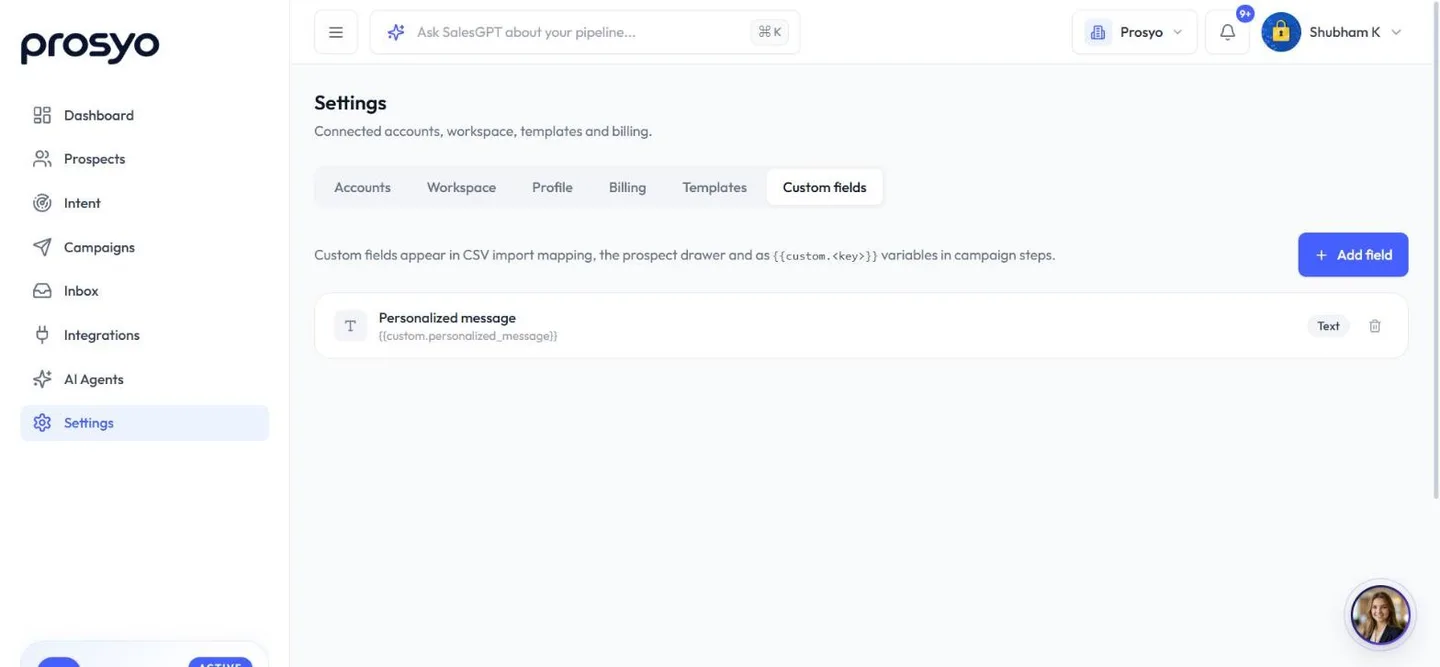
Custom fields store any extra data you want, and each one becomes a message variable.
Create a custom field#
- Go to Settings → Custom fields.
- Click Add field.
- Enter a Field name, for example Industry, and choose a Type: Text, Number, Date, URL or Select. For Select, list the Options separated by commas.
- Click Add field. Prosyo creates a key, for example
industry, and shows the variable under the field's name:{{custom.industry}}.
Deleting a field hides it from imports, the side panel and mapping. Values already saved on prospects are kept.
Fill custom fields#
- On import: map a spreadsheet column to Custom · Industry. See Import from CSV.
- By hand: open a prospect and edit the field under Custom fields in the side panel.
Use custom fields in messages#
Hi {{first_name|there}}, saw that {{company_name}} is growing fast in {{custom.industry|your market}}.See Variables and personalization.
The prospect side panel#
Click any row to open the side panel. Most fields can be edited right there.
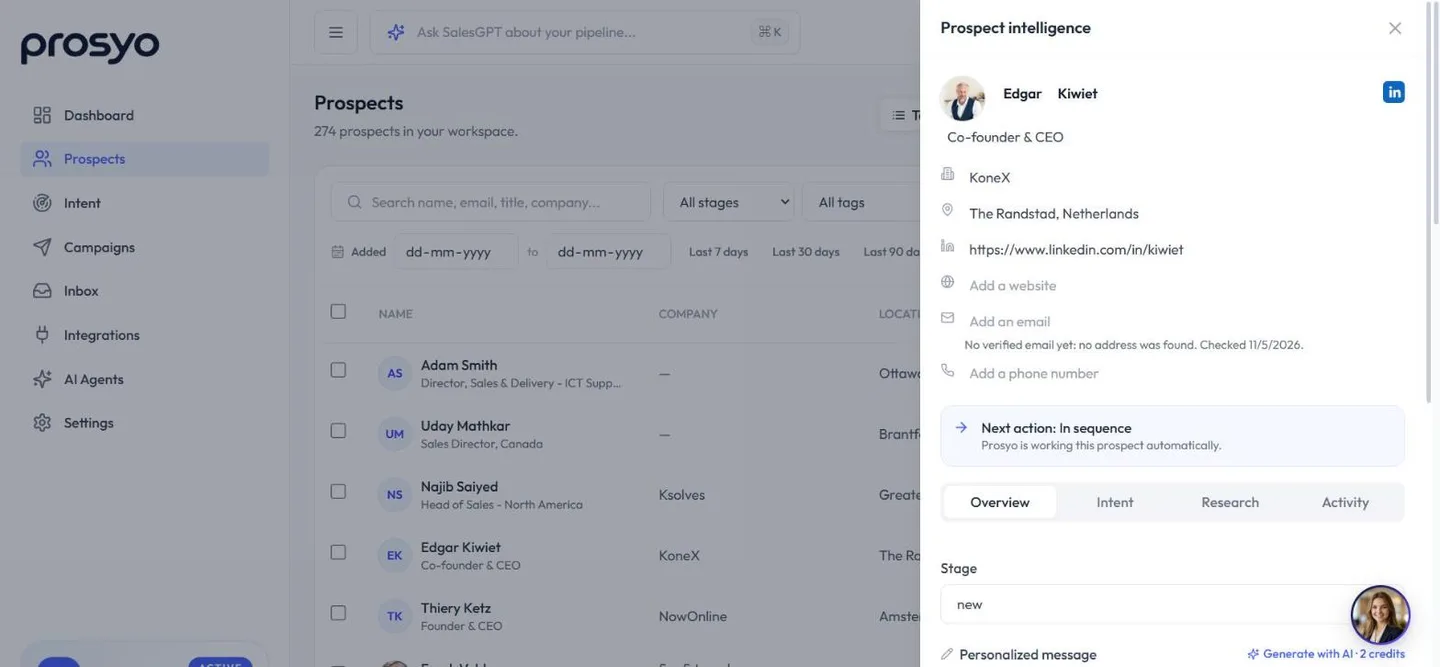
- At the top: name, job title, company, location, LinkedIn URL, website, email and phone. Under the email, Prosyo shows whether it's a verified work email.
- Next action: what to do next, for example Reply in Inbox, Add to a campaign or Enrich with AI.
- Overview tab: Stage, the Personalized message (with Generate with AI · 2 credits), Custom fields, conversations, campaigns, and any personalized videos made for them.
- Intent tab: their buying signals and scores, why they fit your ideal customer, Intent research and their campaign activity. See Intent.
- Research tab: the AI research from enrichment and what Prosyo read on their LinkedIn profile. See Enrichment.
- Activity tab: Notes and a Timeline of recent activity.
- Delete prospect at the bottom removes them for good.
Export#
- Filter the table: by list, stage, tag, email, LinkedIn, enrichment status, fit, intent, the date they were added, or search. Or tick the rows you want.
- Click Export (it reads Export 24, or however many you ticked).
- Prosyo downloads a CSV of those people, including enrichment results, lists and tags. One file holds up to 20,000 people.
See Export everything you have for the columns.
Add a single prospect#
Click Add prospect in Prospects to create one person by hand. Fill in their name, Job title, Company, and a LinkedIn URL or an Email (at least one of the two).