


On this page
Agent Penny is your AI chief of staff for sales. Ask about your campaigns, people and replies, get messages written in your voice, research companies, change a campaign, bring in the rest of your AI team, or have Penny do a job for you on a schedule. On every Penny plan she can also use her own computer for work that needs a browser or a terminal. You decide which actions she may repeat on her own and which wait for your OK.
Open Penny#
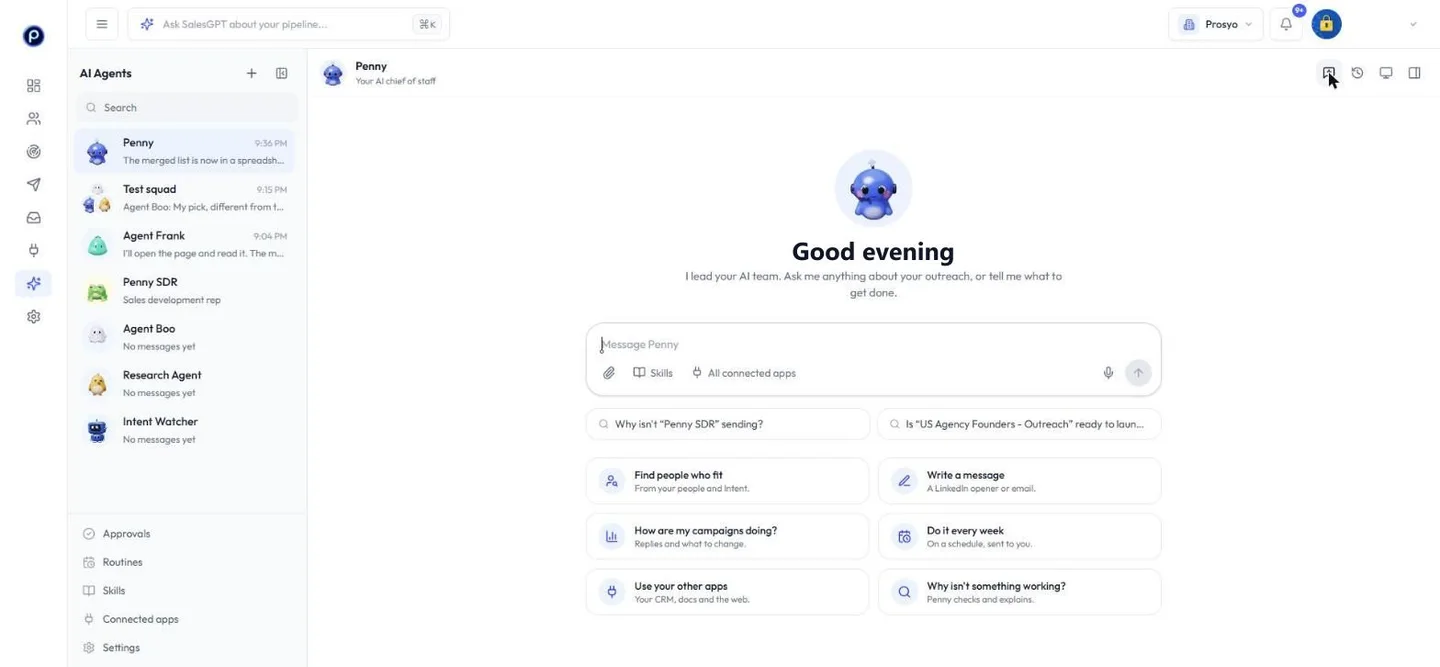
Click AI Agents in the left menu. Penny is always first in your team list; click her to open your latest chat with her. If a page shows a plan prompt, open Settings → Billing → Hire Agents to see the Penny plans for your workspace. See Hire Agents.
Penny appears as an animated character next to her answers, in the header and on the chat's home screen. Her face shows what she's doing: thinking while she plans, busy while she works, listening when she needs you and celebrating when a job is done. Move your mouse and she follows it; click her and she reacts.
| Where | What it's for |
|---|---|
| New chat (chat header) | Start a fresh conversation with Penny |
| Earlier chats (chat header) | Open one of your earlier conversations with her |
| Computer (chat header) | See and take over Penny's computer, on plans that include it |
| Approvals (bottom of the list) | Every step from Penny and your agents that's waiting for your go-ahead, with a count |
| Routines | Jobs Penny does for you every day, on weekdays, every week or every month |
| Skills | Sales playbooks Penny and your agents can follow. See Skills. |
| Connected apps | The tools Penny can use for you. See Connectors. |
| Settings | Saved logins, computer time, your own AI keys, memory, Knowledge and Penny plans |
SalesGPT stays in the bar at the top of every page. Use it for quick questions; use Penny for longer work.
Talk instead of typing#
Click the microphone next to Send and speak; your words appear in the box, ready to edit or send. Click the speaker under an answer to hear it read aloud. See Talk instead of typing.
What you can ask#
Start from one of the suggestions, or type your own:
- “Find people who fit my ideal customer and save the best 20 to a new list.”
- “Write a short LinkedIn opener for Priya Raman at Kestrel Freight.”
- “How are my campaigns doing this week, and what should I change?”
- “Why isn't my email campaign sending?”
- “@Apollo find 10 heads of sales at logistics companies in Germany and save them to a list called Germany logistics.” Penny saves people from other apps with their name, email, phone and LinkedIn; people already in Prosyo are added to the list, not duplicated.
- “In my Q1 founders campaign, make the second LinkedIn message shorter and wait 3 days before the follow-up.” See Edit a campaign with Penny.
- “Move everyone in my Webinar list who booked a call to the Meeting stage.” Penny can move people to a stage, add them to or remove them from a list, remove a tag, or suppress them. Each change shows an Update people card with how many people it affects.
- “Who owns Kestrel Freight, and what was its revenue last year?” See Company research.
- “How do I connect a second LinkedIn account?” Penny answers how-to questions from this Help Center and links the page she used.
Penny leads with the answer and keeps replies short. A message that's ready to send appears as its own card with Copy. Each answer's work shows as one line, such as Worked for 42s · 3 steps. Open it to see the steps Penny took, the apps she used and links to the pages she read. Links to Prosyo pages in an answer open those pages.
Under your question you'll find Copy, Edit and Run this on a schedule. You can edit any earlier question; the messages after it are replaced. Under Penny's answer you'll find Copy, Good answer and Bad answer, and Regenerate on the latest answer.
You can keep writing while Penny works: your next message waits above the box and goes out when she finishes. See While an agent is working. Sometimes Penny asks a short question with options to tap; your answer is sent as your own message.
You can refresh the page, close the tab or open another chat while Penny works. She keeps going. When you come back, the chat shows she's still working, and the answer appears when it's ready. Only Stop ends an answer. A bigger job carries on in the background: you get a notification when it's done, and you can stop it from the chat.
If you refer to earlier work, Penny can look back through your own other chats, never a teammate's. She doesn't run an action again if it already ran in the same chat (the step reads “Used the earlier result instead of running it again”) unless you ask her to do it again.
Edit a campaign with Penny#
Ask Penny to change an existing campaign. She can:
- Write or rewrite step copy: connection note, LinkedIn message, InMail, email subject and body, and post comment.
- Change the waits between steps.
- Change sending settings: name, time zone, sending days and hours, daily limits, stop on reply, withdrawing unaccepted invitations, the gap between sends, and sending accounts.
- Replace the whole sequence of a draft that was never launched.
A running campaign must be paused before its steps change. Its settings can change while it runs. The change shows as a card, and nothing changes until you approve it. Afterwards Penny can preview the merged messages for you. Launching is a separate card you approve.
Company research#
When you ask about a company's legal name, ownership, leadership, funding or financials, Penny checks public company registers and filings and the company's own website. She reads its about, team and investor pages, or the exact page you name. You'll see “Checked public company records” in the work line.
Every figure comes with its source, a link and how sure Penny is. If several companies have a similar name, she asks you to confirm which one you mean. Most private companies publish no financials; Penny says so rather than filling the gap.
Turn an idea into a diagram#
Ask Penny to draw your sales funnel, map a handoff or explain a follow-up process. Your diagram appears in the chat, with Download SVG for a crisp image you can reuse in a document or presentation. See Create diagrams with Penny for ready-to-use prompts.
Continue work after an approval#
Approve the card to carry out that action. Penny then continues the remaining request in the same chat. You can return later to see the result; further changes may need another approval. Creating a draft campaign does not launch it.
If an answer stops with an error, a card says “Penny stopped before finishing.” It lists what's Done so far, anything Not confirmed — check these before trying again, and Continue, which picks up from what's already done. Actions whose result wasn't confirmed are never run again by themselves, so check them first. When the cause was temporary, Penny continues by herself after about a minute. A failed answer isn't charged.
If Penny ends with a partial answer or asks for more information, there's still work to do: check the completed cards, then ask her to continue with what she already saved. Completed actions stay saved.
If one answer reaches its credit limit, Penny stops there and keeps everything done so far. Reply “continue” to keep going.
Approve what Penny does#
Reading and looking things up run straight away. When Penny wants to change something (create or edit a campaign, save or update people, save a note to Knowledge, launch, send a reply, use credits, change another app, or act on a website), she shows a card with what will happen, how many people it affects and how many credits it can use. Each card says what kind of action it is: Changes something in Prosyo, Sends or goes live, Uses credits, Changes another app or Acts on a website.
Nothing happens until you click the button on the card. A short reply such as “yes, do it” tells Penny which request you mean, but only the card's button runs the action. Not now dismisses a card. Cards expire after 24 hours.
Only members and above can approve. Viewers can read, ask questions and see cards, which show Ask a member to approve.
Routines: jobs Penny does on a schedule#
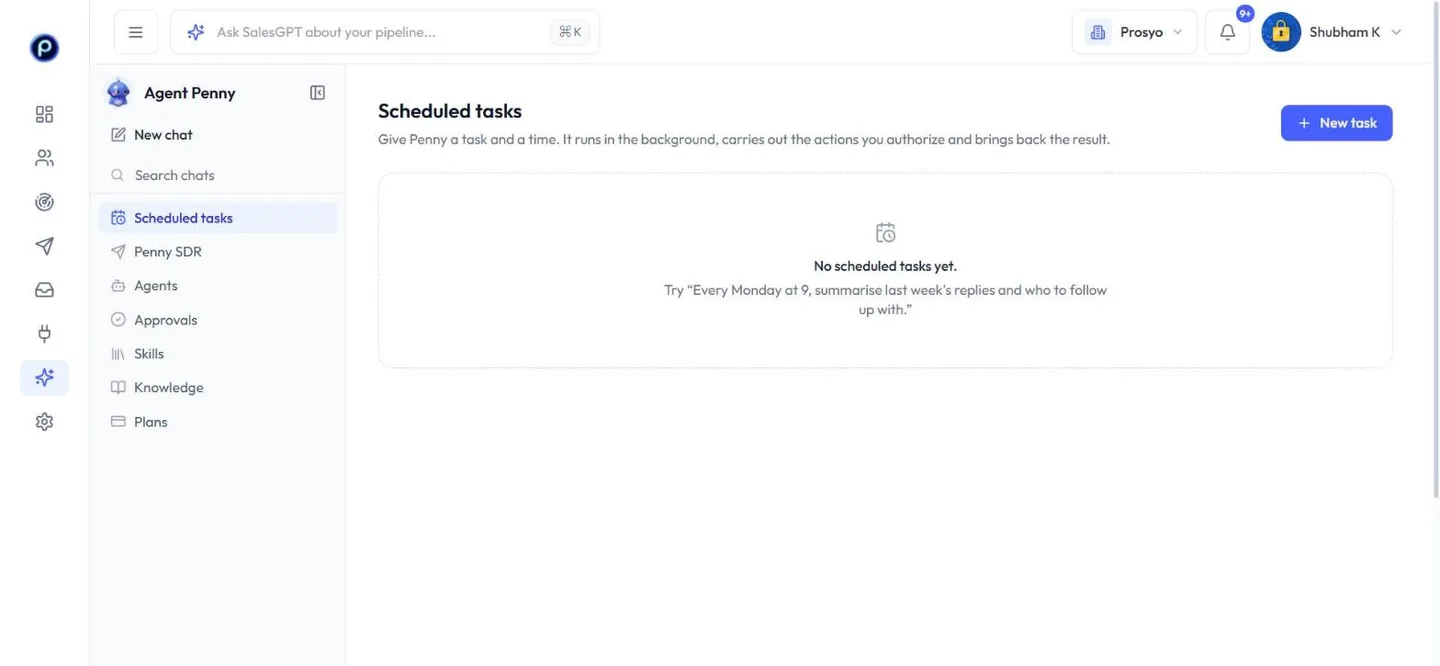
Open Routines at the bottom of your team list and click New task, write what Penny should do, and pick when: every day, weekdays, a day each week or a day of the month (1–28), at a time in your time zone. Tick Email me the answer to get the result in your inbox. Each person can keep up to 20 tasks.
Under What Penny can do on its own, review the actions allowed on each run. New tasks start with routine actions such as saving people, tagging and preparing a draft campaign selected. Change these choices before saving. Choose the apps the task needs, and set its AI credit limit per run.
Saving gives Penny permission to repeat the selected actions for that task without asking again. Sending, paid actions and changes in another app need their own selected permission. Anything outside your saved choices still waits for review. Existing tasks keep their earlier review settings until you edit them.
Choose Run now to start a task in the background. You can leave the page and return to its results. Open the task's run history to see what finished, what failed and what needs attention. A finished result appears in the task's chat, with a notification and an email if you chose one. Your next scheduled time stays in place.
Edit a task to change its instructions, schedule, apps or permissions. Turn it off to pause future runs. Changes also stop the current run from starting further automatic actions; anything already completed remains saved.
Each run uses AI credits like a normal Penny question. Paid actions such as enrichment and charges from connected apps are separate from the AI limit. Your workspace role, available credits and plan limits still apply.
Example: “Every Monday at 9, summarise last week's replies and who to follow up with.”
Use your files and other apps#
- Click Add a file (the paperclip) to add a PDF, Word, PowerPoint, Excel, CSV, text or Markdown file. Penny reads it for this message (for example a CSV of leads or a brief), and it's kept in Knowledge for later chats.
- Click Skills or type / to use a skill for one message, such as an objection-handling playbook. A chip shows Skill: and the skill's name. Skills come from the Skills library.
- Type @ or click the plug button (it reads All connected apps) to limit a message to chosen connectors, such as your CRM or web search.
Hand a job to an agent#
Just ask. “Ask Research Agent to find the founders of these five companies, then draft an opener for each.” Penny hands that part to the agent and carries on with the rest:
- The work line shows Asked and the agent's name, and the agent shows working… in your team list.
- The agent posts its report in the same chat, under its own face and name.
- Penny builds on the report and finishes your request.
If the agent needs more time, Penny tells you it's on it and finishes your request by herself as soon as the report arrives, even if you've closed the page. Steps that need your approval appear as cards in the chat. See Let your agents work together.
If an agent can't start, Penny says so. Check that Penny Agents is on your plan and the agent is switched on, then try again.
Penny's computer#
With any Penny plan, and if your workspace has it, Penny has her own computer for web work: a browser, a quick terminal for running commands and, if your workspace has it, a full desktop.
- A small Penny's screen card under the latest answer that used it, or the Computer button in the chat header, opens the live view with Watch or take over. There you can Take control and click and type yourself.
- Anything that acts on a website waits for your approval on a card marked Acts on a website.
- With a saved login, Penny can sign in to a site for you after you approve. She never sees the password.
- Files the computer makes appear in the chat under Files from Penny's computer, each with Download. Only you can download them.
- Computer time each month: 8 hours with Penny Agents, 30 with Penny SDR and 100 with Penny SDR All-in, shared by your team and reset on your plan's billing day. Each extra minute uses 2 credits.
See Penny's computer for the full guide.
Credits#
Penny uses credits for the AI work needed to read your request, use relevant information and prepare the answer. Waiting for an app or your approval has no time charge. A failed answer is not charged; earlier successful work remains in your usage history. When fewer than 20 credits are left, the chat shows how many remain. Other apps may charge their own credits separately. See AI credits.
See also: What Penny remembers.