


On this page
Agent Penny is your sales assistant inside Prosyo. Ask about your campaigns, people and replies, get a message written in your voice, or have Penny do a job for you on a schedule. Anything that changes data, sends or spends credits waits for your approval.
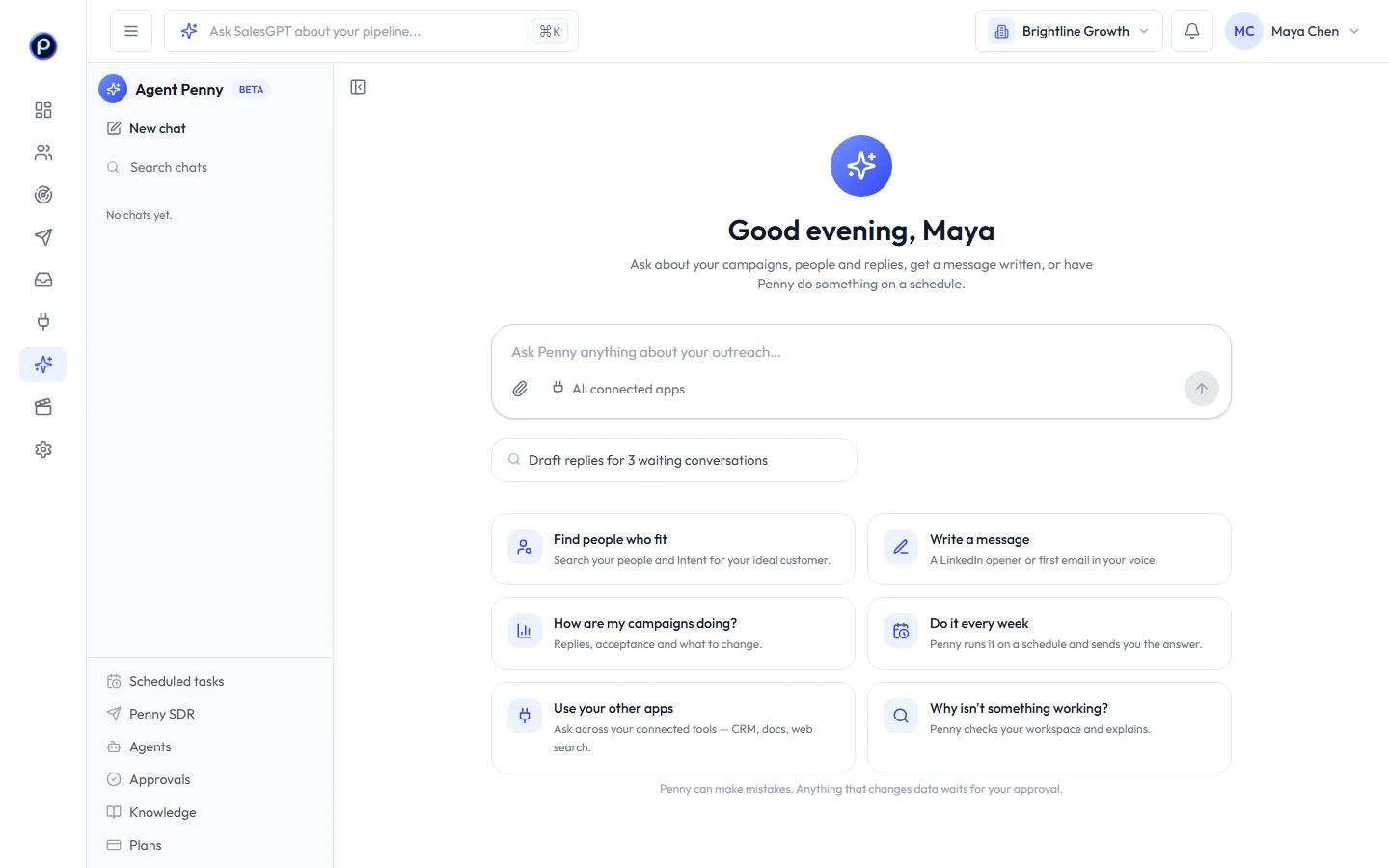
Open Penny#
Click Agent Penny in the left menu. Penny opens as a full page with its own sidebar:
| In the sidebar | What it's for |
|---|---|
| New chat and your chats | Every conversation, grouped by Today, Yesterday, the last 7 and 30 days. Rename or delete from a chat's menu. |
| Scheduled tasks | Questions Penny answers for you every day, weekday, week or month |
| Penny SDR | Penny runs your outreach day (with the Penny SDR plan) |
| Agents | Agents that research, qualify and write for you. See Agents. |
| Approvals | Everything waiting for your go-ahead |
| Knowledge | Files, websites and notes Penny uses for your facts. See Knowledge. |
| Plans | Add Penny Agents or Penny SDR to your plan |
SalesGPT stays in the search bar at the top of every page. Use it for quick questions; use Penny for longer work.
What you can ask#
Start from one of the suggestions, or type your own:
- “Find people who fit my ideal customer and save the best 20 to a new list.”
- “Write a short LinkedIn opener for Priya Raman at Kestrel Freight.”
- “How are my campaigns doing this week, and what should I change?”
- “Why isn't my email campaign sending?”
- “@Apollo find 10 heads of sales at logistics companies in Germany and save them to a list called Germany logistics.” Penny saves people from other apps with their name, email, phone and LinkedIn; people already in Prosyo are added to the list, not duplicated.
Penny shows a line for each thing it looked at, so you can see where an answer came from. Copy any answer, edit your last question, or regenerate the answer.
Approve what Penny does#
When Penny wants to change something (create a draft campaign, save people to a list, launch, send a reply or use credits), it shows a card with what will happen, how many people it affects and how many credits it uses. Nothing happens until you click the button on the card. Not now dismisses it. Cards expire after 24 hours.
Only members and above can approve. Viewers can read and ask questions.
Scheduled tasks#
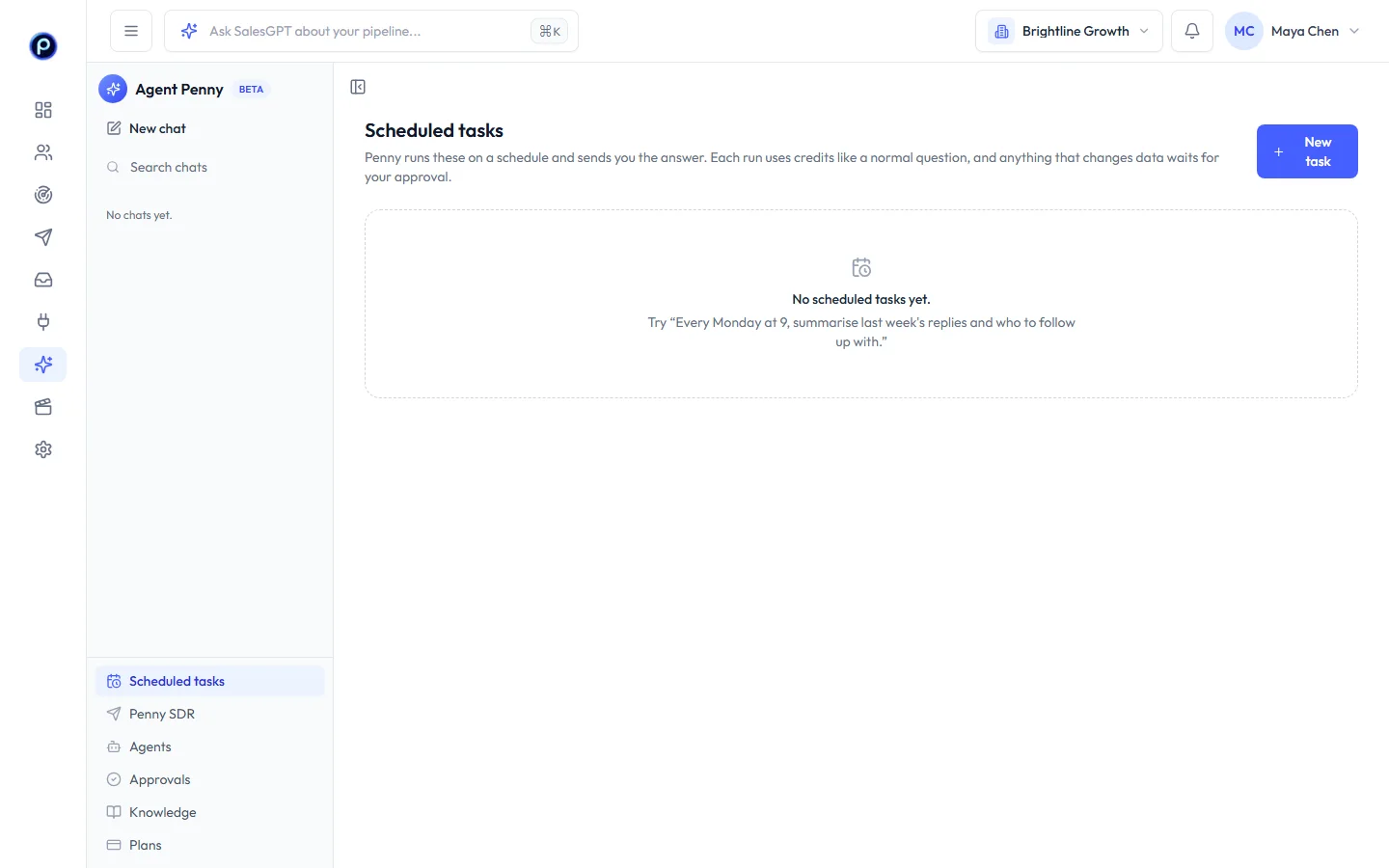
In Scheduled tasks, click New task, write what Penny should do, and pick when: every day, weekdays, a day each week or a day each month, at a time in your time zone. Tick Email me the answer to get the result in your inbox. Each run uses credits like a normal question, and anything that changes data still waits for your approval.
Example: “Every Monday at 9, summarise last week's replies and who to follow up with.”
Use your files and other apps#
- Click the paperclip to add a file. Penny reads it for this message (for example a CSV of leads or a brief), and it's kept in Knowledge for later chats.
- Type / to use a skill from Knowledge, such as your objection-handling playbook, for one message.
- Type @ or click the plug button to limit a message to chosen connectors, such as your CRM or web search.
Hand a job to an agent#
Click the agent button next to the paperclip and pick one of your agents. The box then says Run with that agent; what you type becomes its task, and Penny posts a link to the run so you can follow it. Choose Penny answers to go back to chatting with Penny.
Credits#
Each question uses at least 1 credit. Longer work that reads many things uses 1 credit per started 10,000 words of AI work. If an answer fails, nothing is charged. See AI credits.










