On this page
Inbox brings every LinkedIn and email conversation from your connected accounts into one place. Reply, update the stage and move on, without switching tabs.
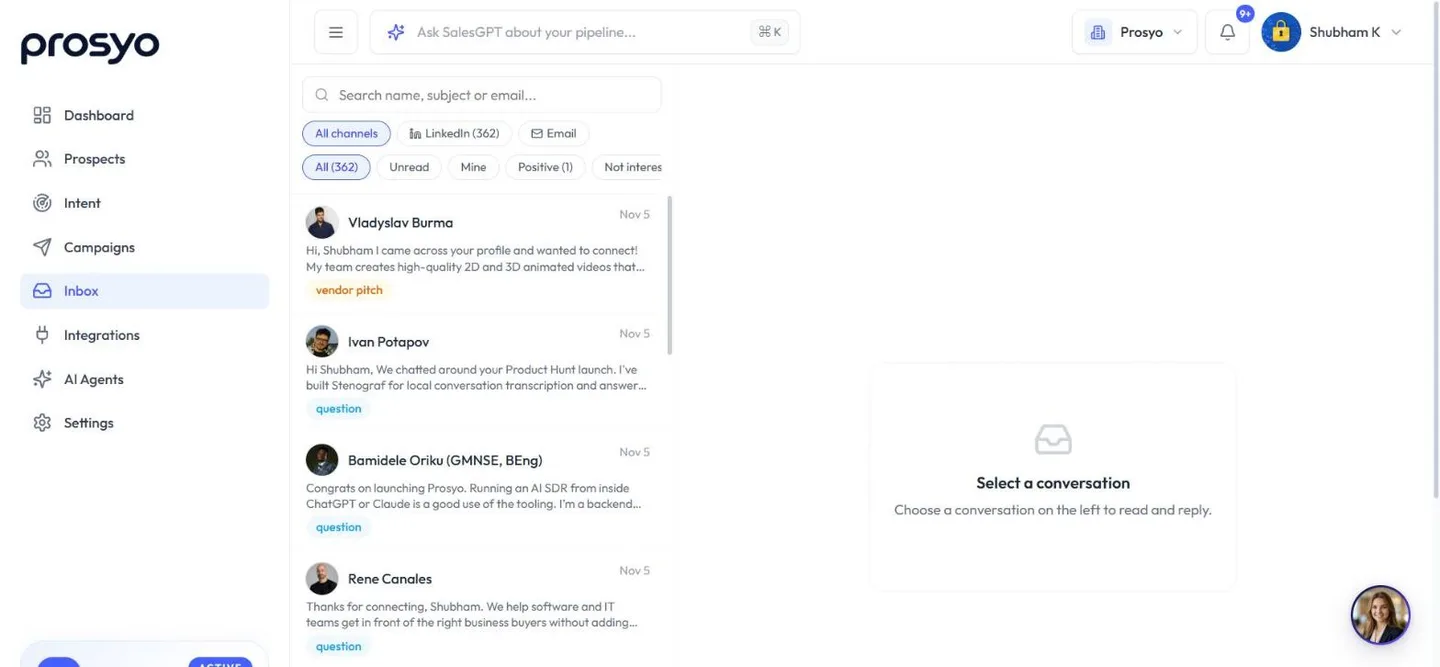
Layout#
| Area | What it shows |
|---|---|
| Left: conversations | Search ("Search name, subject or email..."), channel and view filters, and the conversation list |
| Right: conversation | Messages, the AI summary, and the reply box with Draft with AI · 1 credit and Send reply |
| Top of the conversation | The stage menu, archive, quick buttons (Interested, Meeting, Not interested, DNC, Close), assign, Snooze, Follow-up, Summary · 1 credit, and links to the LinkedIn Profile and the prospect Record (opens their side panel) |
On a phone, the list and the conversation take turns: tap a conversation to open it, and the back arrow to return.
Members and viewers see conversations on their own accounts and any assigned to them. Owners and admins see the whole team, or one teammate when they pick that person in the workspace menu's Account section.
Voice notes, images and files#
A LinkedIn reply is not always words.
- A voice note plays in the conversation, with its length beside it.
- An image shows inline. Click it to open the full size.
- Anything else appears as a link you can open.
In the conversation list, a reply with no text reads as Voice note · 0:34 rather than looking empty.
LinkedIn serves these files from a link that expires soon after the message arrives, so Prosyo fetches them from LinkedIn the moment you open them. If a file is very old, LinkedIn may no longer have it. The conversation then says "LinkedIn is no longer serving this file" instead of showing a broken player.
Filters#
View: All, Unread, Mine, Positive, Not interested, Questions, Meetings, Follow-ups, Snoozed, Do not contact, Archived.
Channel: All channels, LinkedIn, Email.
The view filters sit on one row. Scroll sideways to see them all. Most filters show a number in brackets: how many conversations they hold.
Prosyo labels replies automatically, for example as interested, question or meeting request, so these filters work without manual tagging. Labelling replies doesn't use credits.
Reply#
- Open a conversation.
- Type your reply, or click Draft with AI · 1 credit to have Prosyo write a short reply from the conversation.
- Edit the draft and click Send reply.
Your reply goes out through the same account as the thread: the LinkedIn account for LinkedIn threads, and the same mailbox for email threads. Email replies stay in the same thread.
If that account isn't working, a line above the reply box shows its status with a link to fix it in Settings, and Send reply stays off until it's fixed.
AI summary#
Long thread? Click Summary · 1 credit for a short recap: what they want, their objection or blocker, and the recommended next step. It appears as AI summary above the messages.
Organize conversations#
| Action | How |
|---|---|
| Change stage | Use the stage menu at the top, or the quick buttons Interested, Meeting and Not interested. Not interested also closes the conversation. |
| Do not contact | Click DNC and confirm Mark do not contact. All running sequences for that person stop at once, and Prosyo never contacts them again from this workspace. |
| Assign a teammate | Choose a teammate from the assign menu (it reads Unassigned until you do). Filter by Mine to see the threads assigned to you. |
| Snooze | Later today (4h), Tomorrow, In 3 days, Next week. The thread gets a snoozed badge and is listed under Snoozed until then. Click unsnooze to end it early. |
| Follow-up reminder | Remind me in 2 days, 5 days or 2 weeks. When it's due, the Dashboard shows it under follow-ups due, and the Follow-ups filter lists every thread with a reminder. Click clear to remove it. |
| Archive | Hides the thread from the main list. It's still under Archived, where Unarchive brings it back. |
What a reply does automatically#
When a prospect replies on either channel:
- Their remaining campaign steps stop (default setting).
- A prospect at New or Contacted moves to Replied. When the reply's label is clear, the stage moves on: a meeting request to Meeting, interest to Interested, a no to Not interested. A request to stop marks them Do not contact.
- The thread appears at the top of Inbox as unread.
- You get a notification, plus Slack or webhook events if you've connected them.
You don't need to pause the campaign.
Sync#
Inbox keeps itself up to date and checks your accounts again while it's open. If a LinkedIn or email message seems missing, go to Settings → Accounts and click the Sync now button (the circular arrows) on that account.
Reply from Agent Penny, Claude or ChatGPT#
Ask "What's in my inbox?" or "Draft a reply to the last unread thread":
- In AI Agents (if your workspace has it), Penny shows the reply as a card and sends it only when you click Send reply. See Agent Penny.
- In Claude or ChatGPT, the assistant shows you the reply and waits for your yes before sending.
Inbox habits that book meetings#
See reply templates for word-for-word answers to the most common replies.
- Answer positive replies within one hour during working hours.
- Move real opportunities to Interested or Meeting. A reply of "thanks" isn't pipeline.
- Use Follow-up reminders on "reach out next quarter" replies.
- Mark hostile replies Do not contact (DNC) so no campaign ever reaches them again.