On this page
Main menu#
| Menu | What it's for |
|---|---|
| Dashboard | Your daily overview: what needs your attention, meetings and reply rates, outreach activity, your pipeline and the activation checklist. |
| Prospects | Every person in your workspace, with lists, stages, import, enrichment and export. |
| Intent | People who fit your ideal customer and show, on their own, that they need what you sell: asking for it on LinkedIn, reaching out to you, filling in a form, or a moment such as funding. Today lists who to reach now with a drafted first message. |
| Campaigns | Your sequences, audiences, sending limits and reports. |
| Inbox | LinkedIn and email conversations in one place. |
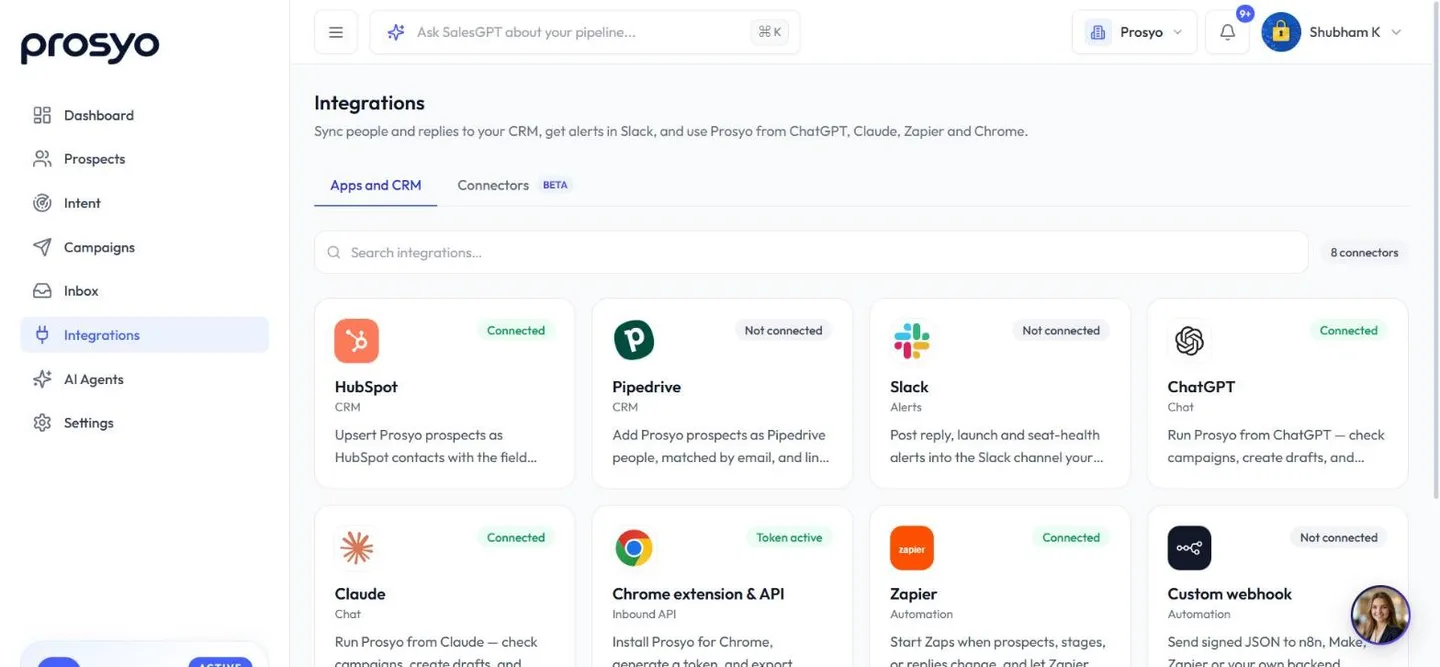
| Integrations | HubSpot, Pipedrive, Slack, Zapier, custom webhooks, Claude, ChatGPT and the Chrome extension & API. Click a card to open its details in a panel on the right. If your workspace has connectors, a second tab, Connectors (Beta), lets Penny use your other tools. |
| AI Agents | If your workspace has it: Agent Penny, your AI sales assistant, in a full-page chat with its own menu (Scheduled tasks, Agents, Approvals, Skills, Knowledge and more). See Agent Penny. |
| Video | If your workspace has it: personalized video, with its own menu (Dashboard, Studio, Media, Storage). Creating videos is included with Multichannel, Agency / Team and Penny SDR All-in. See Record a video in Studio. |
| Settings | Accounts, Workspace (General, Ideal customer, What you sell), Clients for agencies, Profile, Billing (Plan, Credits, Invoices, Transactions), Templates and Custom fields. |
Plan card#
At the bottom of the menu, a card shows your plan, its status (Active, Trial, Payment due or Ended, or Paused in a client workspace) and your credit balance. Its button reads Start free trial before a trial starts, Upgrade during a trial or after it ends, Renew plan after a paid plan ends, or Manage plan. A client workspace shows that it runs through its agency, with no button.
Top bar#
- SalesGPT search bar ("Ask SalesGPT about your pipeline..."). Ask about your workspace or draft a message. Each message uses 1 credit. Press
Ctrl+Kon Windows or⌘Kon Mac. On a phone, tap the sparkle button. See SalesGPT. - Workspace menu. Shows the workspace you're in. Switch workspaces (and agency clients) here. On a phone it sits inside the account menu.
- Notification bell. Replies, account, campaign and billing alerts. See Notifications.
- Account menu (your name). SalesGPT, Your profile, Team settings and Sign out.
Workspace menu#
If you belong to more than one Prosyo workspace, open the workspace menu at the top and pick one under Workspace. Your role shows next to each one. Agencies see their clients listed under Clients of the agency's name. Dashboard, prospects, Intent, campaigns, inbox and settings stay inside the workspace you select.
Owners and admins of a workspace with more than one teammate also see an Account section. Pick Whole team to see everything, or one teammate to see only their stats, campaigns, inbox and connected accounts.
The menu also links to Manage clients (agency owners and admins), Workspace settings, Invite teammates (Invite people in a client workspace; owners and admins only) and Manage sending accounts (Connect an account when nothing is connected yet).
Each campaign chooses its own sending accounts on its Sending & safety tab, and each LinkedIn import asks which LinkedIn account to use.
See Team seats and invites and Client workspaces.
Reading the Dashboard#
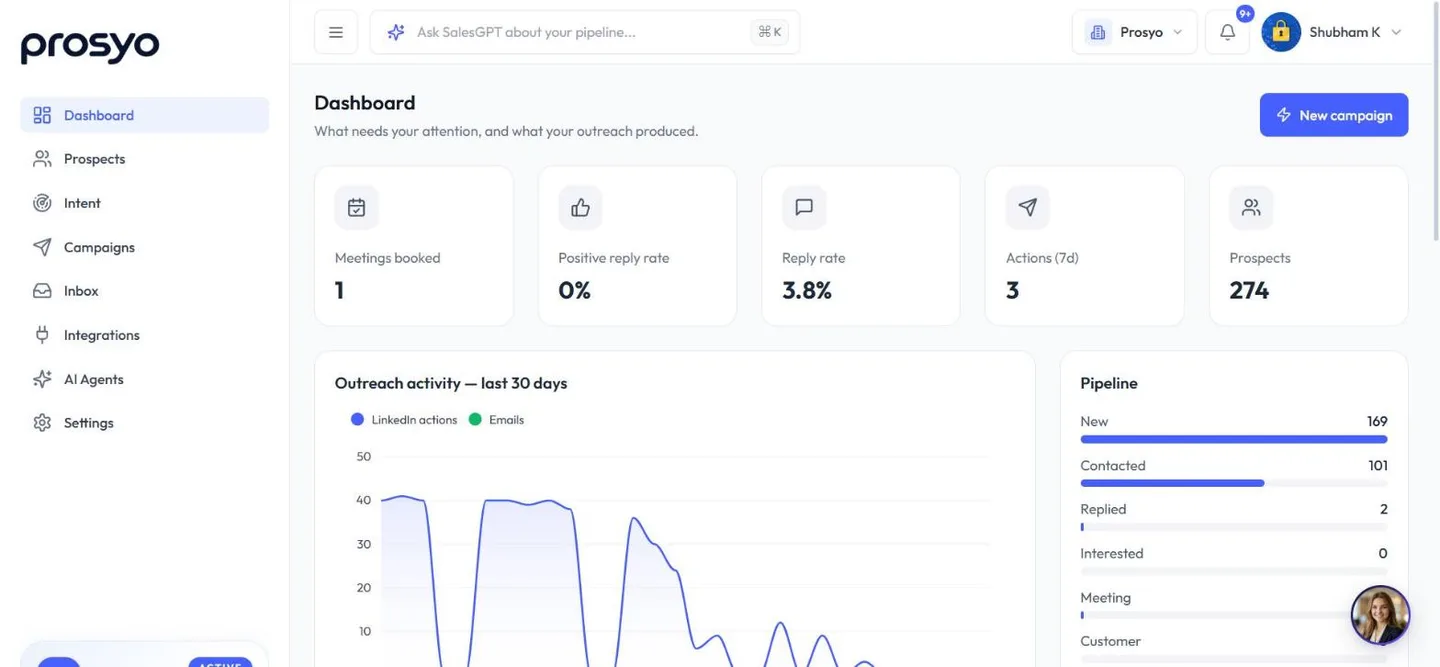
- New campaign. Starts a campaign from the top of the page.
- Launch your first campaign. The activation checklist: connect a sending account, add or import prospects, build your first sequence, launch it, handle your first reply. It disappears when you've done all five.
- Attention cards. Accounts that need attention (Fix accounts), unread replies (Open inbox), interested prospects (Book meetings), follow-ups due (Review), overdue steps (Check campaigns) and failed sends in the last 24 hours (Investigate).
- Numbers. Meetings booked, Positive reply rate, Reply rate, Actions (7d) and Prospects.
- Outreach activity — last 30 days. LinkedIn actions and emails per day.
- Pipeline. How many people are at each stage. Click a stage to see them.
- Ready to contact. The top people from Intent, with Open Today.
- Active campaigns and Conversations to work. Your active campaigns with their reply rates, and the conversations waiting on you.
- Workspace activity. Recent sends, replies, imports and campaign changes.
People waiting on a delay, a daily cap or working hours are normal pacing, not a problem. A yellow queued actions overdue card appears only when a step was due more than 30 minutes ago and still hasn't run. See Troubleshooting.
Help chat#
Where it's switched on, a help chat sits in the corner of most pages (not inside AI Agents). Search these help articles, ask a question, or choose Talk to a person to reach the Prosyo team. Its assistant is also called Penny. It answers questions about using Prosyo and never changes anything in your workspace. It's separate from Agent Penny in AI Agents and from SalesGPT.
Keyboard shortcuts#
| Shortcut | Action |
|---|---|
Ctrl+K / ⌘K | Open SalesGPT |