

On this page
Personalized video lets you record once and give every prospect a version that speaks to them. Keep your walkthrough, change the spoken details you choose and, when available, show their website behind you. Video creation is available with Multichannel, Agency / Team or Penny SDR All-in. Penny add-ons alone do not unlock video creation. Video is in the main menu if your workspace has it, with Dashboard, Studio, Media and Storage.
Before you record#
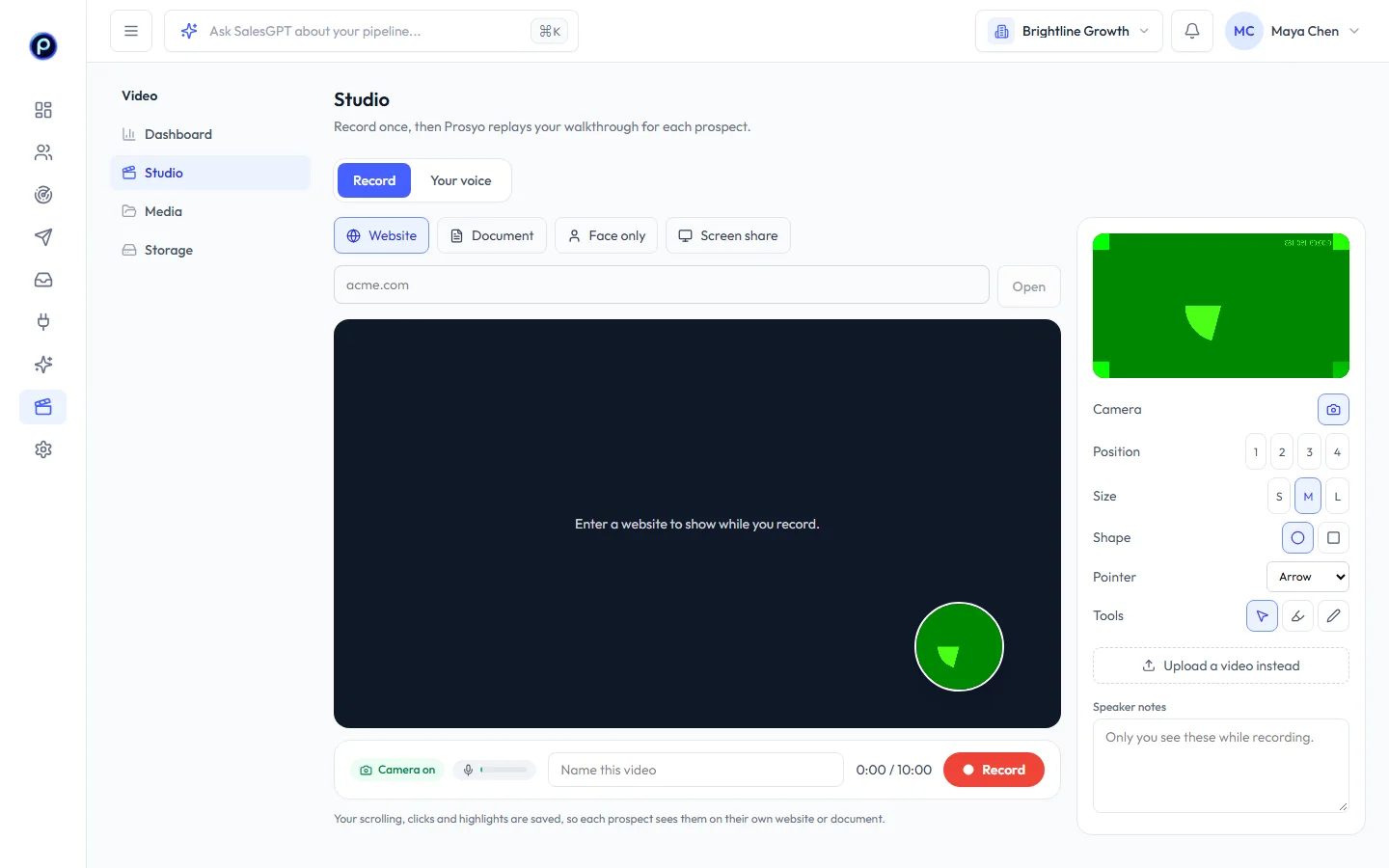
Open Video → Studio. The first time, your browser asks to use your camera and microphone: choose Allow. If you blocked it earlier, click the camera icon in the address bar, choose Allow, then press Turn on camera.
Prosyo names the problem when the camera won't start, for example “No camera or microphone was found” or “Your camera is being used by another app (Zoom, Meet, Teams…)”. Studio works in Chrome, Edge, Firefox and Safari on a computer.
Pick what you show#
| Background | What each prospect sees |
|---|---|
| Website | Share the website tab you want to record. You can keep that walkthrough or use a prospect's website as the background when website personalization is available. Review the preview: links and buttons may sit in different places on another site. |
| Document | A PDF, PowerPoint (.pptx) or image you uploaded in Media, one page per slide. Use the arrow keys to change pages while you record. |
| Face only | Just you, full frame. |
| Screen share | Exactly what you share. It plays the same for everyone. |
Record#
- Set the camera bubble: Position (or keys 1–4 for the corners), Size, Shape.
- Pick a Pointer (arrow, dot or spotlight) and the highlight or pen tools if you want them.
- Add Speaker notes if you like. Only you see them while recording.
- For Website or Screen share, choose the tab, window or screen to share before recording. Check that the preview shows the right page.
- Name the video and press Record. A countdown starts; Pause, Resume and Finish are in the bar under the stage. The timer shows how long you've recorded and the longest a recording can be.
When you finish, the recording is saved and becomes a template you can edit: trim, cut, captions, a greeting, text and buttons, and the page people land on. You can also Upload a video instead of recording.
Edit on the timeline#
Click anywhere on the timeline to move the playhead. Right-click (or press and hold on a touch screen) for the options at that spot:
- Split here, Delete this piece, Start the video here and End the video here to cut and trim.
- Remove the greeting or Remove the ending on those blocks. Add them back from the same menu or the Greeting panel. You can also select a block and press Delete.
- Their name is said here to mark a name (below), and Play from here.
Shortcuts: Space play, S split, Delete remove, Ctrl+Z undo.
Say their name while recording#
Use Personalize spoken words to mark the exact parts that should change for each prospect:
- Choose Add a field just before you say its example value, such as a first name or company.
- Say the example naturally as part of your sentence.
- Choose Finish for that field when you finish saying it.
- Continue your walkthrough. Your recording outside the marked parts stays as you recorded it.
You can adjust these moments after recording. An optional Add a separate opening greeting adds an introduction before the walkthrough; you do not need one to personalize words within the recording.
Adjust a spoken moment in the editor#
Record naturally with a real name, for example “Hey Priya, I looked at your site…”. Then open Names in the editor:
- Type the word you said (“Priya”) and press Find. Prosyo finds it in the captions and marks it. Or play to the spot and press Mark here.
- Choose what replaces it: First name, full name, company, job title or location, and what to say when someone has no value (for example “there”).
- Adjust with Starts here / Ends here at the playhead, and Play it to check.
Prosyo then finds exactly where your word starts and stops (Fitted to the word you said). If the mark is off, play to the spot and use Starts here / Ends here, then Fit to my word again.
With your voice ready, each person hears their own detail in the marked moment. Prosyo fits the speech to the time available; it does not change your mouth movements. Without your voice, the word is muted and the name shows on screen instead. Listen to a test with both short and long names before sharing. Tick Also show their name on screen only if you want a visible name label too. You can mark up to 20 names in one video.
Set up and accept your voice before making a video that needs personalized speech. If the preview says the voice is not ready, finish that setup first. On-screen labels are a separate choice.
Tips for natural results: say a short name of about the same length as most of your prospects' names, keep your pace steady around it, and leave a tiny pause after it (“Hey Priya — I looked at your site”).
Test video#
Test video in the editor's top bar makes a sample for the person you're previewing. When your workspace makes videos in the browser, or the template uses your voice or marked spoken words, click Make a test video: it's made on your computer from what you see, even before you save, and you can play or Download it. Keep the tab open; it takes about as long as the video. Otherwise click Render a test video. It uses the saved template, so save your changes first. Test videos are free, up to a number a day shown in the panel, and the greeting shows as text in them.
Your voice (optional)#
On Your voice, record the provided script, give your consent, then make and listen to a sample. Choose Use this voice when you are happy with it. Only your greeting and marked spoken parts change; the rest of your recording stays intact.
Choose Language for personalized speech for each template and write the personalized parts in that language. This does not translate the rest of your recording. See Set up your voice and personalized speech for the full walkthrough.