


On this page
Personalized video lets you record once and send every prospect their own video: your walkthrough plays over their website, their name appears on screen, and you can greet them by name in your own voice. Video is included on Multichannel and higher plans.
Before you record#
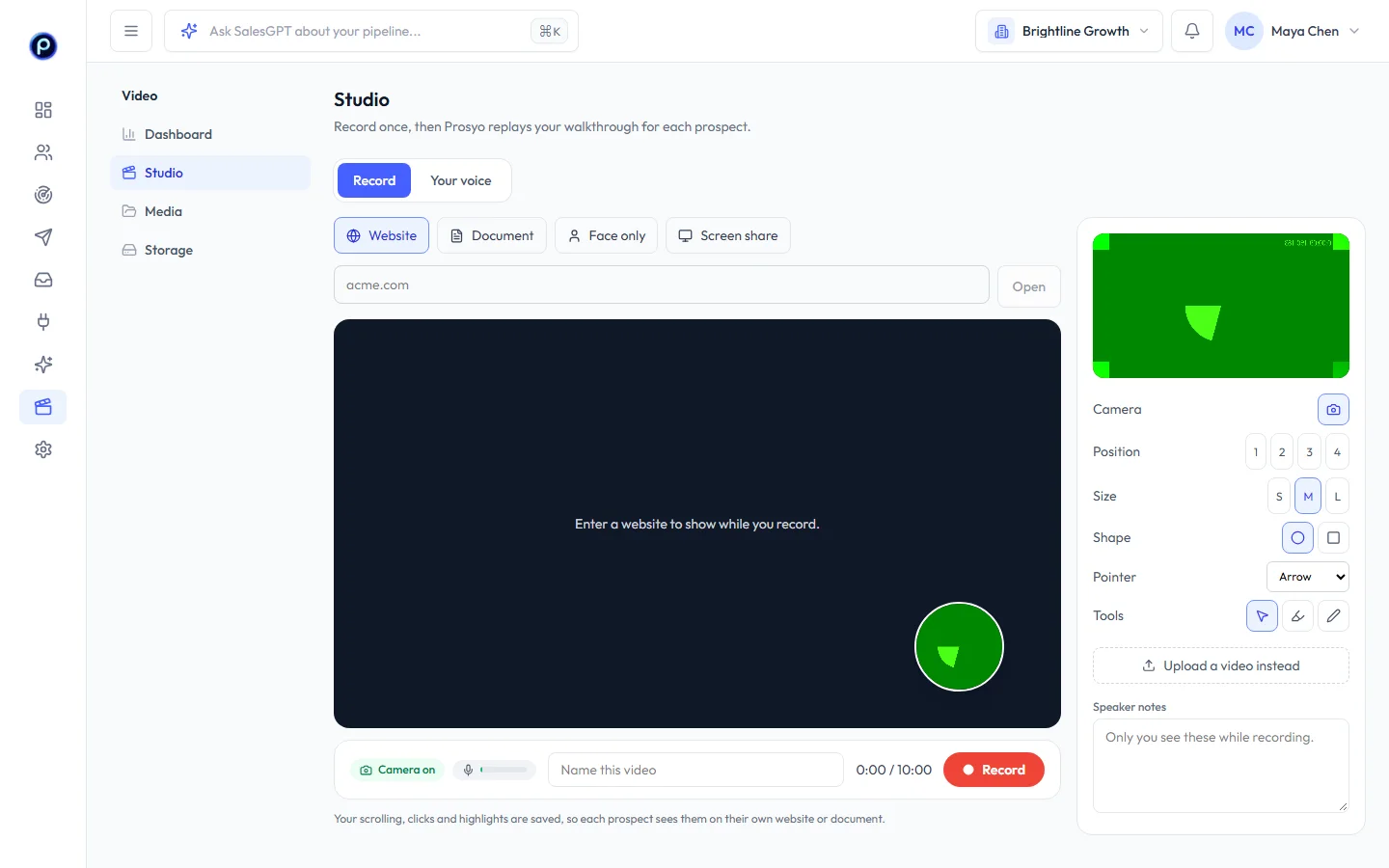
Open Video → Studio. The first time, your browser asks to use your camera and microphone: choose Allow. If you blocked it earlier, click the camera icon in the address bar, choose Allow, then press Turn on camera.
Prosyo names the problem when the camera won't start, for example “No camera or microphone was found” or “Your camera is being used by another app (Zoom, Meet, Teams…)”. Studio works in Chrome, Edge, Firefox and Safari on a computer.
Pick what you show#
| Background | What each prospect sees |
|---|---|
| Website | Your walkthrough replayed on their website. Type a website to rehearse on (for example your own), and Prosyo swaps in each person's site when it makes their video. Your scrolling, clicks and highlights replay at the same places. |
| Document | A deck or PDF you uploaded in Media, one page per slide. Use the arrow keys to change pages while you record. |
| Face only | Just you, full frame. |
| Screen share | Exactly what you share. It plays the same for everyone. |
Record#
- Set the camera bubble: Position (or keys 1–4 for the corners), Size, Shape.
- Pick a Pointer (arrow, dot or spotlight) and the highlight or pen tools if you want them.
- Add Speaker notes if you like. Only you see them while recording.
- Name the video and press Record. A countdown starts; Pause, Resume and Stop are in the bar under the stage. A recording can be up to 10 minutes.
When you stop, the recording is saved and becomes a template you can edit: trim, cut, captions, a greeting, text and buttons, and the page people land on. You can also Upload a video instead of recording.
Edit on the timeline#
Click anywhere on the timeline to move the playhead. Right-click (or press and hold on a touch screen) for the options at that spot:
- Split here, Delete this piece, Start the video here and End the video here to cut and trim.
- Remove the greeting or Remove the ending on those blocks. Add them back from the same menu or the Greeting panel. You can also select a block and press Delete.
- Their name is said here to mark a name (below), and Play from here.
Shortcuts: Space play, S split, Delete remove, Ctrl+Z undo.
Say their name while recording#
Record naturally with a real name, for example “Hey Priya, I looked at your site…”. Then open Names in the editor:
- Type the word you said (“Priya”) and press Find. Prosyo finds it in the captions and marks it. Or play to the spot and press Mark here.
- Choose what replaces it: First name, full name, company, job title or location, and what to say when someone has no value (for example “there”).
- Adjust with Starts here / Ends here at the playhead, and Play it to check.
Each person then hears their own name in your voice. Until your voice is set up, the word you said is muted and their name shows on screen at that moment. Your lips aren't changed.
Test video#
Test video in the editor's top bar makes a sample for the person you're previewing. When your workspace makes videos in the browser, it's made on your computer from what you see, even before you save, and you can play or download it. Keep the tab open; it takes about as long as the video.
Your voice (optional)#
On the Your voice tab, read the script aloud for at least 45 seconds and agree to the consent text. Prosyo then greets each prospect by name in your voice at the start of the video. Until it's set up, the greeting is shown as text. Only you can set up your voice, and you can delete it at any time.










