

On this page
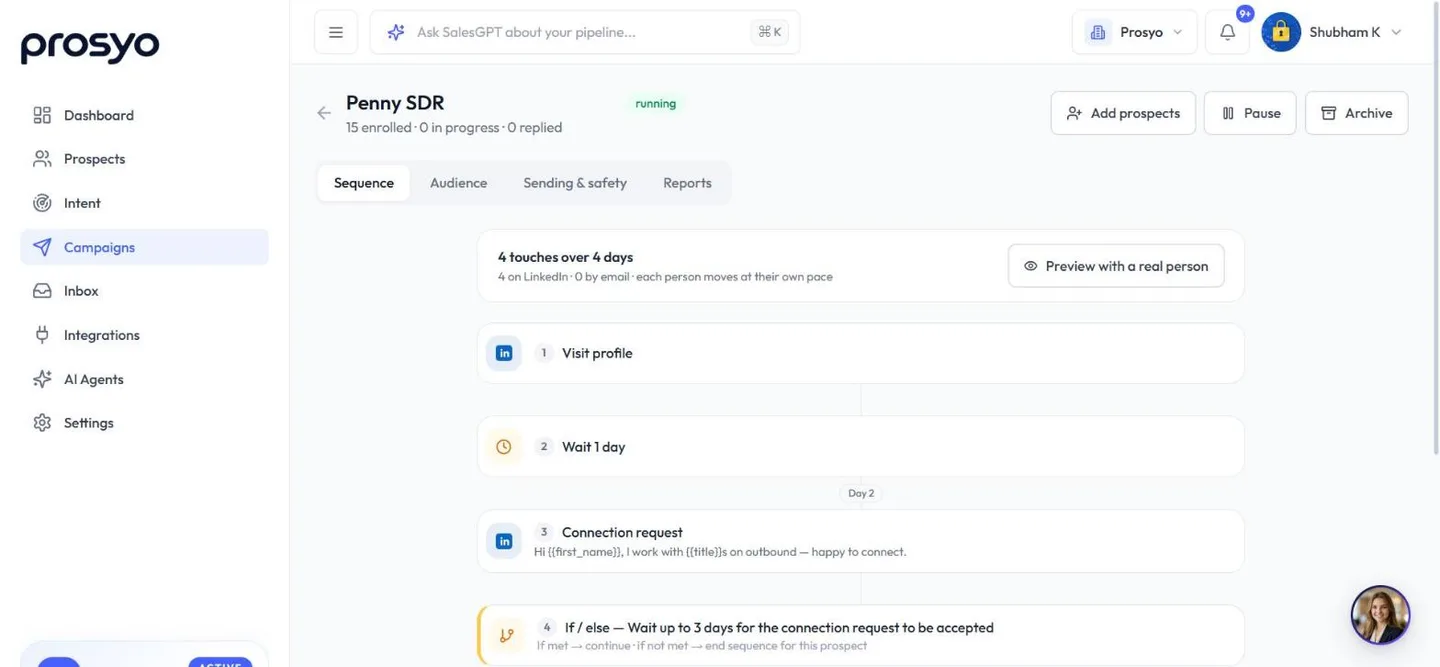
A sequence is an ordered set of steps. Each enrolled prospect walks through the steps one by one, inside your working hours and daily limits.
Step types#
| Step | What it does | Notes |
|---|---|---|
| Visit profile | Views the prospect's LinkedIn profile from your account | They can see you viewed them. A soft first touch. |
| Like recent post | Reacts to their most recent LinkedIn post | Skipped if they have no recent post. Counts toward LinkedIn actions per day. |
| Comment on recent post | Comments on their most recent post | Write the comment, or tick Generate by AI to write it at send time from your AI instructions. |
| Connection request | Sends a LinkedIn invite | Note is optional, 300 characters max. One invite per sequence. |
| LinkedIn message | Messages a 1st-degree connection | If they haven't accepted yet, Prosyo waits and retries. Attach up to 3 images to show rather than tell. |
| Voice note | Sends a recording they play inside LinkedIn | Upload it on the step: up to 60 seconds, .m4a plays best. Optional text goes with it. 1st-degree connections only. |
| InMail | Messages someone you are not connected with, from Sales Navigator or LinkedIn Premium | Uses one of your InMail credits. Connections get a normal message instead. Optional subject up to 200 characters, message up to 1,900. See InMail. |
| Sends an email from your SMTP/IMAP mailbox or Gmail/Outlook | Needs a subject and body. Follow-up emails stay in the same thread. Skipped if the prospect has no email. | |
| Delay | Waits a set number of hours | Working hours still apply after the delay. |
| If / else | Continues only when a condition is true | See below. |
Add and arrange steps#
- Under Add a step, pick a type from LinkedIn, Email or Timing and logic. If your plan has no mailbox, the Email step shows Connect and can't be added yet.
- Drag a step by its handle, or use the arrows on the step, to move it.
- Use the icons on the step to duplicate or delete it.
- Click a messaging step to expand it and edit the text. Pick saved copy from Insert from template..., or use Write with AI · 1 credit. See One-click campaigns and AI.
- Click Save sequence when you're done.
The summary at the top shows how many touches the sequence has, over how many days, and how many are on LinkedIn and by email.
Pause a running campaign before you edit its sequence. While it runs, the steps are read-only.
Voice notes and images#
A voice note is the one step nobody else in their inbox is sending. It plays inside LinkedIn, in your voice, and it works because it is short.
Add one
- In the sequence, click Add a step → Voice note.
- Click Upload and choose your recording. Record it on your phone and send it to yourself —
a phone memo is already
.m4a, which is what LinkedIn plays best. - Play it back on the step to check it.
- Optionally add text — a line of context that arrives with the recording.
What to record
- Under 30 seconds. LinkedIn allows 60; the ones that get replies are half that.
- Say their name and one specific thing about them, then one sentence on why you reached out.
- No script voice. A phone recording in a quiet room beats a studio take.
- One recording can serve every prospect in the campaign. To use it again on another step, pick it under Or reuse one you already uploaded.
Images
On a LinkedIn message step, click Upload under the message box to attach up to three images (PNG, JPEG, WebP or GIF). A screenshot of a result usually says more than the paragraph describing it.
A campaign won't launch while a voice note step has no recording — Prosyo says which step is missing one.
Voice notes and images go to 1st-degree connections, like any LinkedIn message. Put them after a connection request and an If / else → Wait until connection request is accepted step. Replies to a voice note arrive in your Inbox like any other message.
Personalized video#
If your workspace has Video (included with Multichannel, Agency / Team and Penny SDR All-in), Email and LinkedIn message steps have Add a personalized video. Pick a template and quality, then put {{video_link}} (or, in an email, {{video_thumbnail}}) in the message. Each video uses credits when it's first sent. See Send personalized videos.
InMail#
An InMail step reaches people outside your network without waiting for a connection request. It works with a Sales Navigator or LinkedIn Premium account connected in Settings → Accounts, and uses the InMail credits that come with that LinkedIn plan (Prosyo doesn't charge for them).
What happens for each person:
- Already connected? They get a normal LinkedIn message instead, so you don't spend an InMail credit. Untick Send connections a normal message on the step if you always want an InMail.
- Not connected: Prosyo sends the InMail from Sales Navigator when your account has it, otherwise as a Premium InMail.
- Out of InMail credits, or they don't accept InMail? The step is skipped for that person and the sequence goes on. You'll see it as skipped in the campaign's Reports.
Write a short, specific subject and a message under 100 words. Write with AI on the step writes both for you, for where the step sits in your sequence.
A common pattern is Connection request → If accepted (wait 7 days, go on anyway) → InMail. People who accept get a message; people who don't get the InMail.
If / else conditions#
An If / else step checks one condition. Conditions come in groups.
Outreach
| Condition | Continues when |
|---|---|
| Wait until connection request is accepted | They accept your invite. Give up after sets how long to wait, in hours. The default is 72. |
| Prospect has replied | They replied on any channel |
| They clicked a link you sent | A tracked link in your email was opened within the days you choose (1–45, 7 by default). When the campaign has Recognise people who click your links on, opening a link to your own website from any message counts too (see Sending limits and safety). Email security checks can also open links. |
| Prospect has an email address | Their email is known |
| Research and personalised messages are ready | Their Intent research is ready, so steps that use research lines have something to say |
Intent
| Condition | Continues when |
|---|---|
| They are a High-intent ICP person | They show strong intent, fit your ideal customer well, and can be reached |
| They are Warm or High-intent | They are Warm or High-intent in Intent |
| They showed a buying signal recently | They gave one of the signals you tick, within the days you choose (1–45). Signals are grouped by what the person did (Asking, Evaluating you and so on); with none ticked, any signal counts. Replies and clicks from your campaigns don't count here; use the Outreach conditions for those. |
| They fit your ideal customer | Their fit score is at least the minimum you pick (70 by default). Fit comes from Settings → Workspace → Ideal customer. |
For the Intent conditions, Keep checking for sets how many hours Prosyo waits for the condition to come true before taking the "not met" path.
The other Outreach conditions also keep checking, for 3 days by default, before taking the "not met" path. That wait can't be changed on the step.
Video
If your workspace has Video, They watched your video continues when they watched at least 25%, 50%, 75% or 100% of the video, within the days you choose.
Then choose what happens when it's not met:
- If not met → end sequence for this prospect
- If not met → continue to next step anyway
Example: fall back to email when they don't accept
1. Visit profile
2. Connection request (with note)
3. If / else: Wait until accepted (168 hours) → if not met, continue
4. If / else: Prospect has an email → if not met, end
5. Email: "Tried to connect on LinkedIn..."
Example: send the pricing follow-up only to people who clicked your link
1. Email: case study
2. If / else: They clicked a link you sent (in the last 7 days) → if not met, end
3. Email: pricing follow-up
Prosyo keeps checking for up to 3 days after the case study. Everyone gets the case study. People who click the link in it get the pricing follow-up; for everyone else the sequence ends there.
In an Intent-led campaign, people are added as they show the signals you chose, so these conditions help you match the message to what they did.
Example sequences#
LinkedIn only (most common first campaign)#
| # | Step | Timing |
|---|---|---|
| 1 | Visit profile | Day 0 |
| 2 | Connection request (short note) | Day 1 |
| 3 | If accepted (wait up to 7 days) | |
| 4 | LinkedIn message: thanks + question | After accept |
| 5 | Delay 72 hours | |
| 6 | LinkedIn message: value or resource | Day +3 |
| 7 | Delay 96 hours | |
| 8 | LinkedIn message: soft close with calendar link | Day +7 |
Multichannel#
| # | Step |
|---|---|
| 1 | Visit profile |
| 2 | Like recent post |
| 3 | Connection request |
| 4 | Delay 48 hours |
| 5 | Email 1 |
| 6 | If accepted → LinkedIn message |
| 7 | Delay 72 hours |
| 8 | Email 2 (reply in the same thread) |
See the playbooks and message templates for full copy.
Writing tips#
- Connection notes: short, specific, no pitch. Many people accept more often with no note than with a salesy one.
- First message: one question about their world, not your product.
- Follow-ups: add something new each time, such as a resource, a customer story or a short insight.
- Emails: plain text, under 120 words, one clear call to action.