


On this page
Agents are the members of your AI sales team. Each one has a role, like account researcher, copywriter or reply handler, and does that job for you: on request in its chat, on a routine, or when something happens. It finds people who fit, qualifies them against your ideal customer, writes personal first lines, drafts replies or collects people who turned high intent. Choose the actions it may repeat on its own, and review everything else.
Agents come with the Penny Agents plan (5 agents), Penny SDR (10) and Penny SDR All-in (20).
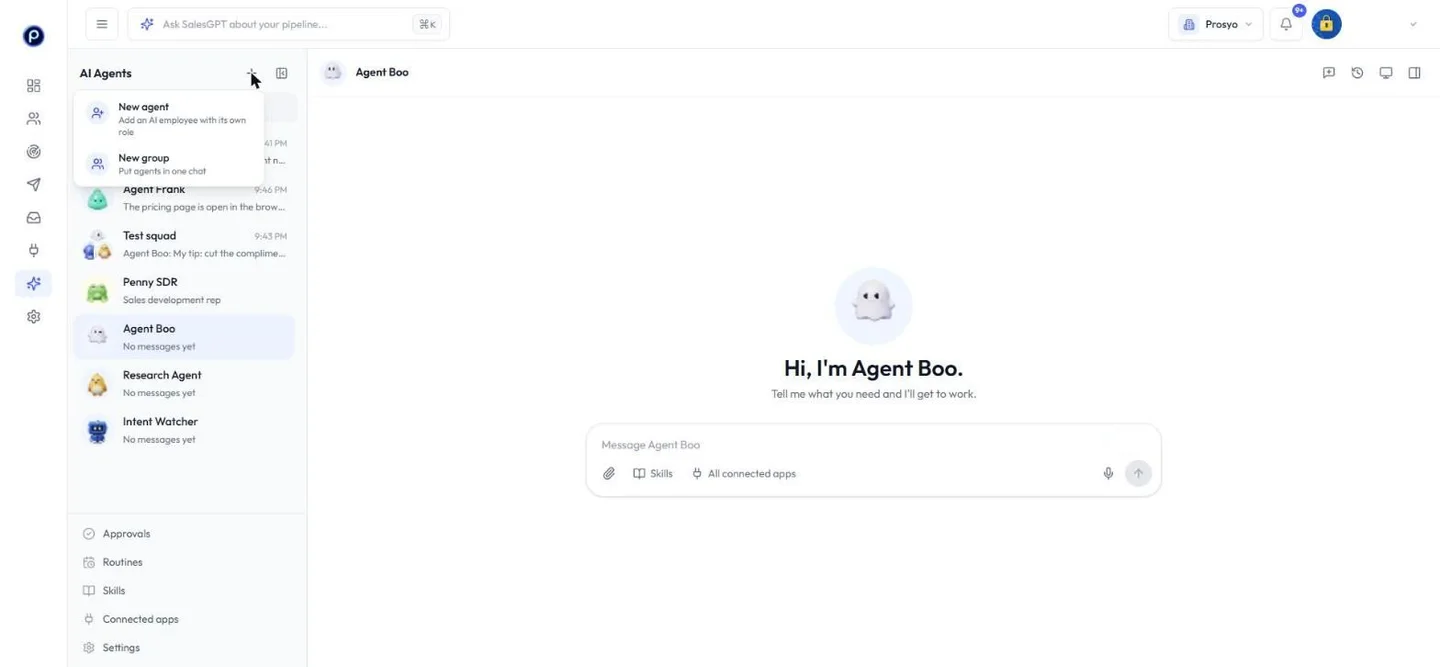
Add an agent#
- Open AI Agents and click +, then New agent.
- Start from an idea (List builder, Lead qualifier, Copywriter, Reply handler or Intent watcher), which brings that template's instructions and skills, or write your own.
- Pick a character and a colour skin. Try a mood or poke it to see it react.
- Fill in Name, Role and What should they do?: what it works on, how it should do it and what a good result looks like.
- Choose its Model.
- Click Add to team.
The new agent appears in your team list with its own chat. Message it straight away, give it a routine, or add it to a group. To copy an agent, save it as a file or import one, see Manage your AI team.
The agent's look. Every agent is an animated character in the colour you choose, or your own picture (PNG, JPEG, WebP or SVG up to 2 MB, using your workspace storage). The same face appears in your team list, in chats and on its runs. To change it later, open the agent's Profile and click Change look.
Its profile#
Click the panel button in an agent's chat to open its profile:
| Tab | What you can do |
|---|---|
| Profile | Name, role, job and instructions, its look, which AI model answers for it, and Open permissions for what it may do on its own |
| Permissions | What it may do without asking, what starts it, and its credit limits (only its owner sees this tab) |
| Computer | Give it its own computer, or none, and watch it work. See Each agent has its own computer. |
| Routine | When it works on its own, Run now, Pause and its recent work |
| Skills | The playbooks it can load |
| Apps | The connected apps it may use; none ticked means every connected app |
| Memory | What it remembers about working with you, with Recent changes and Undo |
| Usage | The credits it used today and this month |
Only the person who added an agent can switch it on, give it a routine or widen what it may do. Teammates can chat with it, run it and pause it.
Permissions and limits#
In the agent's Profile, click Open permissions to choose what it may do without asking.
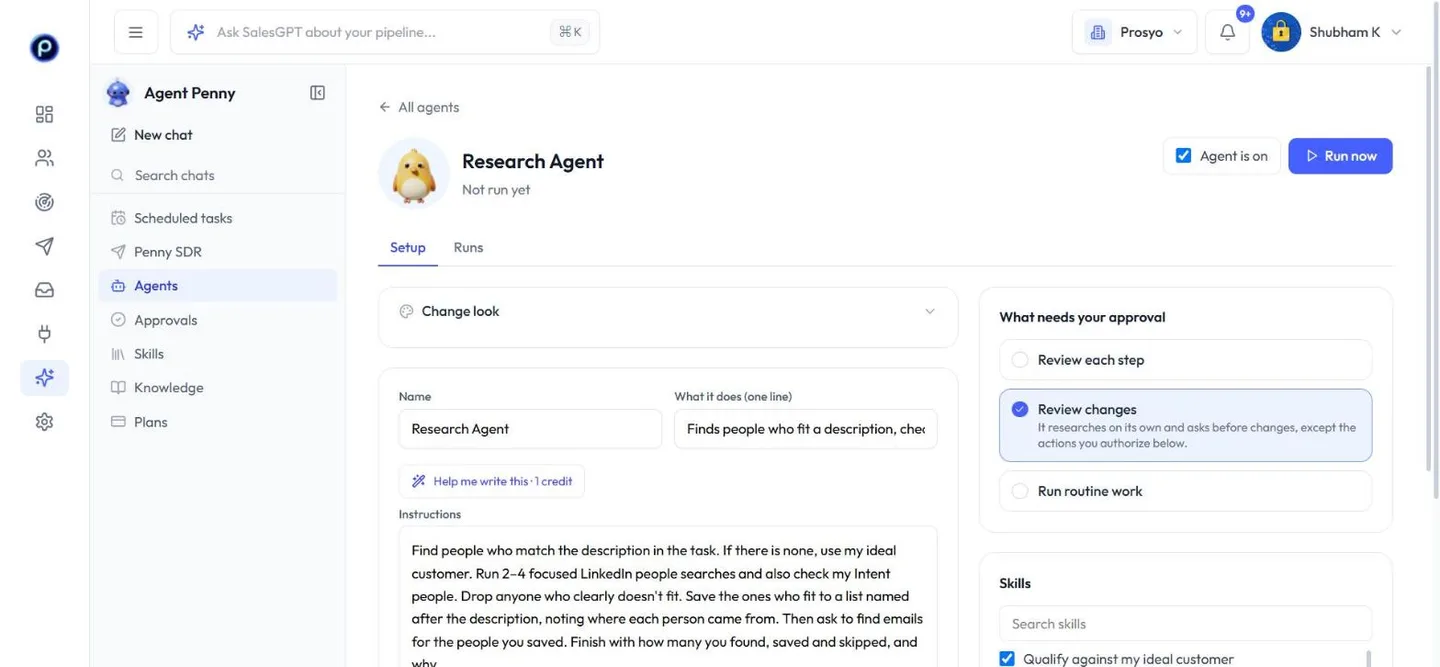
- Instructions: write them like a brief to a teammate: what to look at, what to do, when to stop and what to report. Help me write this · 1 credit can suggest a starting brief from your saved workspace information. Review it before saving.
- When it runs: Only when I run it, or On a schedule (every day, weekdays, or a day each week at a time you choose). Under Also run when, it can also start when people are added to a list, a reply comes in labelled (Interested, Question, Objection…), someone turns high intent, or an import finishes.
- What needs your approval:
- Review each step: it waits for review as it works, unless you allowed that action to run automatically.
- Review changes: it researches on its own and asks before changes, apart from the actions you allowed.
- Run routine work: it researches, updates Prosyo records and uses credits on its own, within the run's credit limit. That includes adding people to a campaign, finding emails, researching or unlocking people and approving people waiting for review. Launching or resuming a campaign, sending a reply and changes in other apps still need review unless you allowed them.
- Allowed without asking: under Choose actions, tick the actions this agent may repeat without asking again. Select an app and its individual actions to allow changes there. Saving records those choices for future runs; instructions and skills don't add permissions.
- What it can do: Everything Penny can do, or Only what I choose. The actions include Look up company records and financials, Update people (stage, lists, suppression), Save notes to Knowledge and Edit a campaign's steps and settings. If your workspace has Penny's computer, its actions appear here too.
- Skills: playbooks the agent loads when it needs them, like Qualify against my ideal customer or Book the meeting. See Skills.
- Connected apps it can use: the connectors it may use.
- Limits per run: the most Steps (3 to 60, 25 to start) and Credits (5 to 2,000, 50 to start) one run may use. A run that reaches its step limit writes up what it found and what's left, then pauses; Continue gives it more steps. A run that reaches its credit limit pauses the same way.
- Credit limits per day and month: the most credits the agent may use in a day and in a month, across its chats and runs. Teammates can lower them, never raise them. See Set credit limits per day and month.
- Change look: the agent's character or picture.
Click Save, then Run now to try it. Add a task for this run, or leave it empty to follow the instructions.
Each agent works in its own computer, with its own browser, sign-ins and files. Only the agent's owner can approve website steps there. To let it sign in to a site for routine work, add a saved login.
Follow a run#
Every run has a page with What it did in plain words, credits per step, and anything Waiting for you. Approve or decline right there. A paused run (it hit its limits or ran out of credits) has Continue; any run can be stopped with Stop run.
The Result area shows formatted answers, tables and diagrams. Use Copy result, or download a diagram for your team. Activity appears separately, and older runs remain available from the agent's Runs tab.
You get a notification when a run finishes, stops, or needs your approval. Every run also reports in a chat: routines and Run now in your chat with the agent, and work handed over by Penny or another agent in the chat that asked for it. See Let your agents work together.
An agent checks its result before finishing. If it still needs information, access or another step, it may pause or report that the work needs follow-up. Open the run to see what finished and what remains; an approval request is a proposed next step, not proof that it ran.
Runs continue in the background, so you can leave the page and return to the same run. If it pauses at its limits, review what it has already done before choosing Continue or Stop run.
Approvals#
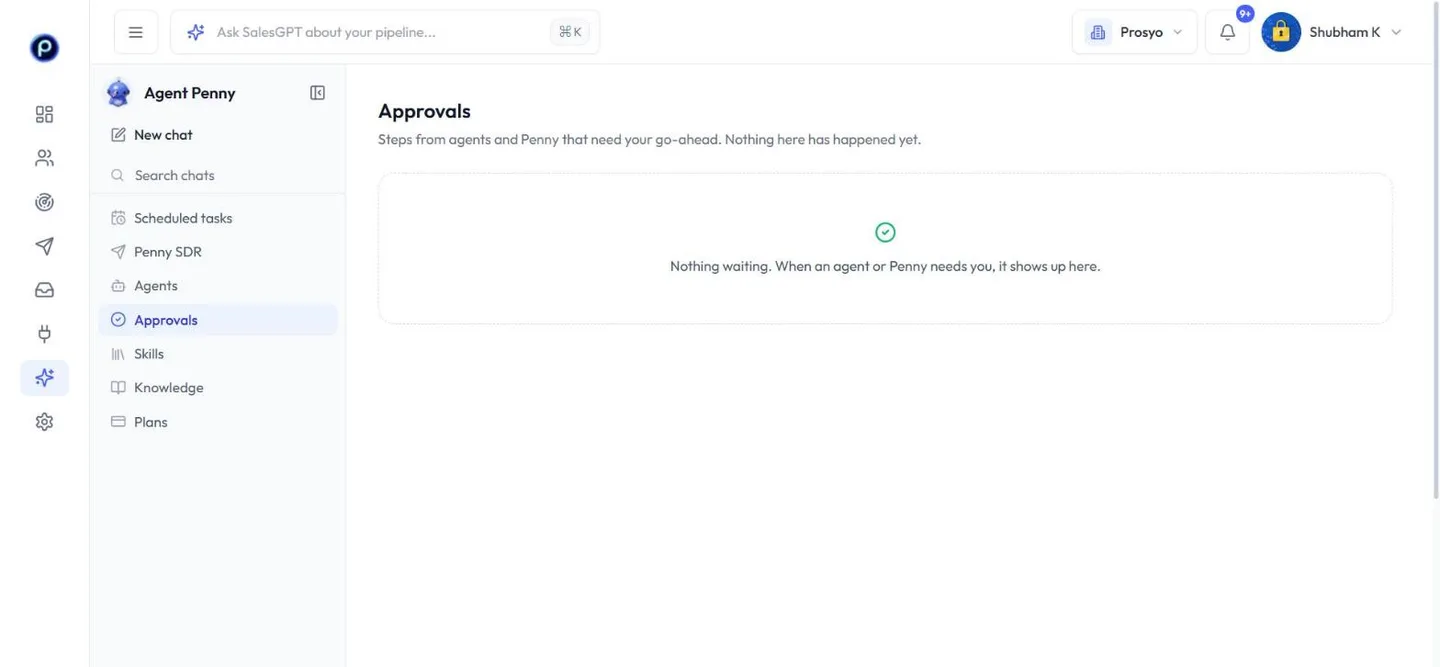
AI Agents → Approvals lists every step waiting for a go-ahead from your agents and your Penny chats. Nothing in it has happened yet. Approve or decline each step on its own, or tick several (or Select all) and use the Approve or Decline button, which shows how many you selected. Declining a step ends that run. Each item shows when it expires: steps from agent runs wait up to 7 days, and cards from a chat expire after 24 hours.
Skills#
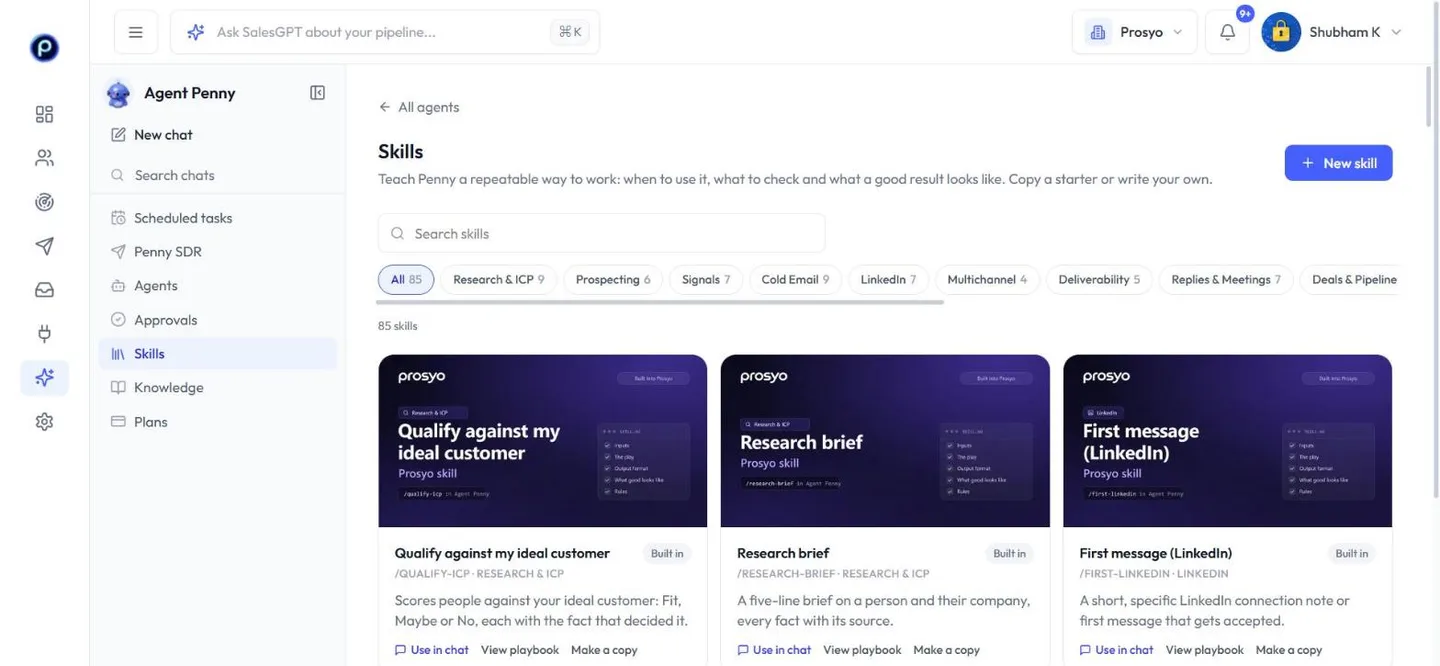
AI Agents → Skills (also linked from the Agents page) is a library of sales playbooks:
- Built in: 8 Prosyo skills, such as Qualify against my ideal customer, Handle an objection and Book the meeting.
- GTM Skills: 77 more playbooks with a GTM Skills badge. Their playbook view notes “From GTM Skills by Prosyo, MIT licence”.
- Yours: the skills your workspace writes. A workspace can keep up to 50 of its own.
Search the library, or filter by category: Research & ICP; Prospecting; Signals; Cold Email; LinkedIn; Multichannel; Deliverability; Replies & Meetings; Deals & Pipeline; Positioning & Messaging; RevOps & Analytics; Content, SEO & AEO; ABM & Expansion; Enablement & Leadership. All shows every skill, and Your skills appears once your workspace has its own.
Each card has a cover picture and these actions:
- Use in chat opens a Penny chat with that skill selected.
- View playbook shows the full playbook, with Try asking example questions that open a chat.
- Make a copy starts your own version of a built-in or GTM skill, which can't be changed directly. Your own skills have Edit and Delete instead.
Anyone with Penny can use a skill in chat with the Skills button or by typing /. If your workspace has Penny Agents, members and above can also create skills with New skill, copy them and edit them.
Write a skill as a reusable playbook: when to use it, what information to check, the steps to follow, when to stop and what the result should look like. Under Actions this skill recommends, add the actions that fit the playbook. Recommendations don't grant access or automatic permission. Attach the skill to an agent, or use it in Penny chat for one question.
Use Help me write this · 1 credit for a suggested playbook, then review it and click Save skill. Making another skill with the same name creates a separate copy, so your existing playbook remains available.
Credits and limits#
Agent steps use credits like Penny questions. The AI credit limit controls the agent's AI work; paid actions such as enrichment and connected-app charges are separate. Up to two runs are active at a time per workspace; others wait their turn.