On this page
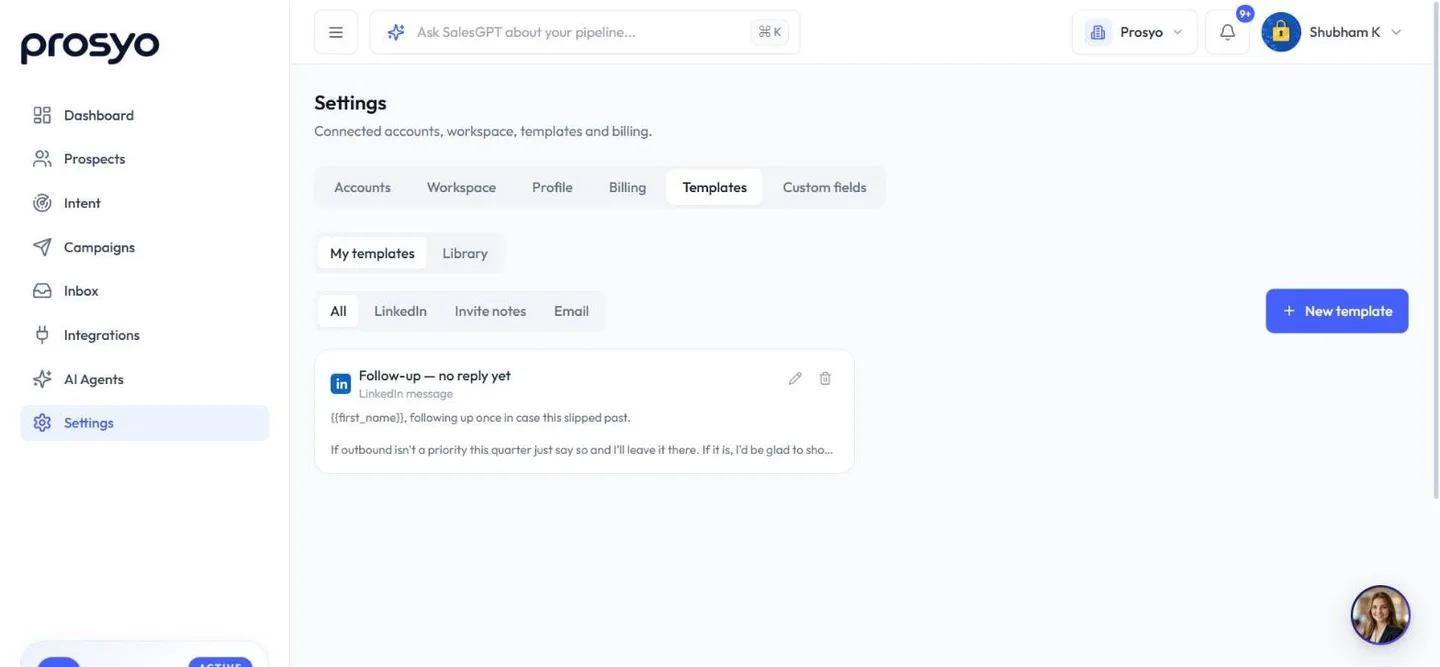
Templates are reusable copy for connection notes, LinkedIn messages and emails.
Create a template#
- Go to Settings → Templates and open My templates.
- Click New template.
- Pick a Channel: LinkedIn message, LinkedIn invite note or Email.
- Enter a Name, a Subject (email only) and the Body. You can use variables like
{{first_name|there}}. - Click Save template.
Filter your templates by All, LinkedIn, Invite notes or Email.
Use a template#
In a campaign's Sequence tab, expand a message step and pick a template from Insert from template.... Only templates for that step's channel are listed: invite notes on a connection request, email templates on an email step, and LinkedIn message templates on the other LinkedIn steps. The text is copied into the step, so you can edit it for this campaign without changing the template.
Template library#
The Library tab in Settings → Templates has two parts:
- One-click campaigns: the same sequences as Use a template when you create a campaign, such as LinkedIn connect & follow up, Email sequence and Multichannel: LinkedIn + email. Use this campaign creates a draft with every step written. See One-click campaigns and AI.
- Premade outreach templates: ready-made invites, messages and emails. Click Add to copy one into My templates, or Add all for every one in the current filter.
Tips#
- Keep one template per proven message, meaning one with a good reply rate.
- Name templates by purpose, for example "Invite – event follow-up" or "Email 2 – case study".
- Templates are shared with everyone in the workspace, so every sender starts from what works.