On this page
Prosyo sends LinkedIn visits, connection requests, likes, comments, messages, voice notes and InMails through your own LinkedIn account. It also uses that account to import LinkedIn and Sales Navigator searches and to sync LinkedIn replies to your Inbox.
Who can connect LinkedIn#
- Paid plans: Starter, Multichannel and Penny SDR All-in include 1 LinkedIn account, Agency / Team 1 per seat, and Enterprise up to 100. On AppSumo plans, LinkedIn needs an extra LinkedIn/email seat from Settings → Billing (tiers 5 and 6 include it for the first 30 days).
- The 7-day Starter trial: LinkedIn connects once autopay is set up for the trial. An owner or admin sets it up on Settings → Billing, with Start free trial or, on a running trial, Add autopay on the Unlock LinkedIn during your trial card. The LinkedIn card on Settings → Accounts then shows Included in trial. Nothing is charged until the trial ends, and then the trial becomes paid Starter by itself. If the trial card says "No card needed", the trial starts without autopay, and you choose a plan to connect LinkedIn.
- A trial without autopay has to choose a plan first. The LinkedIn card shows a Choose a plan button that opens the plans on Billing. See The trial.
Owners, admins and members can connect LinkedIn. Owners and admins see every account. Members and viewers see only their own: the accounts they connected or that were assigned to them. Viewers can't connect or change accounts.
Before you start#
- Use a LinkedIn account you actively use, with a real photo and a complete profile.
- If you have Sales Navigator, connect the same LinkedIn login. Sales Navigator imports then work, and InMail steps send from Sales Navigator (without it, as a LinkedIn Premium InMail). People you're already connected with get a normal message instead. See InMail.
- Keep your phone nearby. LinkedIn may ask for a verification code or approval in the LinkedIn app.
Connect#
- Go to Settings → Accounts.
- Click Connect LinkedIn.
- A secure sign-in window opens. Sign in with your LinkedIn email and password.
- Complete any check LinkedIn asks for:
- a code sent by email or SMS,
- an approval in the LinkedIn mobile app,
- two-step verification from your authenticator app.
- You're brought back to Settings → Accounts. The account shows Connecting. After a short wait it changes to Healthy. The page refreshes by itself.
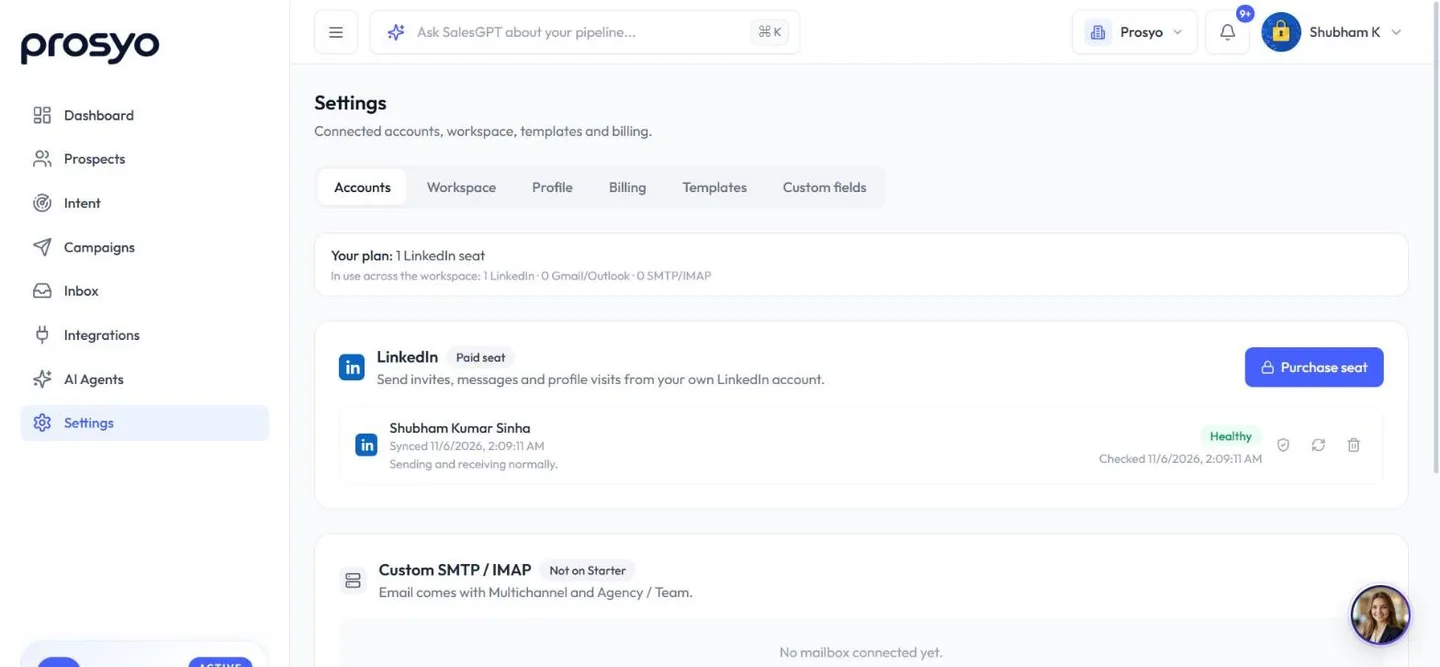
Don't launch a campaign until LinkedIn shows Healthy.
Your LinkedIn password goes to the secure sign-in window, not into Prosyo's own forms. Prosyo stores only the session it needs to act for you.
If the sign-in doesn't go through#
LinkedIn, not Prosyo, decides whether a new sign-in succeeds. If it fails, Settings → Accounts says "LinkedIn wasn't connected" and what to do next. Two LinkedIn messages come up often:
| What LinkedIn says | What it means | What to do |
|---|---|---|
| "An additional step seems necessary to complete login" | LinkedIn wants a security check it can only show on its own site | Open https://www.linkedin.com in your usual browser, finish what it asks (a security check, or confirming your email or phone), then connect again. |
| "LinkedIn can't accept any more requests" | Too many sign-in attempts for that account | Stop retrying, because each attempt extends the limit. Wait a few hours, then connect once. |
Either way, the quickest way through is to skip the new login altogether and connect with the session your browser already has.
Connect without a password (cookies)#
The sign-in window has a Cookies option. It connects using your existing LinkedIn session, so LinkedIn never has to run a fresh login, send a code, or show a security check.
- Sign in to https://www.linkedin.com in your normal browser.
- Copy your
li_atcookie (andli_aif you use Sales Navigator). - In the Prosyo sign-in window, choose Cookies and paste them.
Step-by-step instructions for Chrome, Edge, Firefox and Safari are in Connect LinkedIn with a cookie.
A cookie is as powerful as your password. Only paste it into the Prosyo sign-in window, and never send it by email or chat.
Connect more than one LinkedIn account#
On Agency / Team or Enterprise, or when you've bought extra LinkedIn/email seats, click Connect another LinkedIn. If an earlier attempt was left unfinished, the button reads Finish connection instead: click it to finish that sign-in, or start it again. If one of your LinkedIn accounts needs reconnecting, it reads Reconnect LinkedIn, so fix that account first. If it reads Purchase seat, every LinkedIn seat is in use: it opens Settings → Billing, where you can add a seat or change your plan.
Each teammate on Agency / Team should connect their own LinkedIn from their own login. Owners and admins can hand an account to a teammate with the Assigned to menu under it. See Team seats and invites.
In an agency's client workspaces, LinkedIn accounts come out of the agency's shared seats.
Need a second LinkedIn sender? Add an extra LinkedIn/email seat on Multichannel, Agency / Team or an AppSumo plan. See add-ons.
Test, sync or disconnect#
Each connected account has these actions on Settings → Accounts. Hover an icon to see its name.
| Action | What it does |
|---|---|
| Test connection | Checks that the account still works |
| Sync now | Pulls recent LinkedIn conversations into Inbox |
| Reconnect | Shows when the account needs a new sign-in |
| Disconnect | Removes the account (owners and admins only). Campaigns sending from it move their prospects to another selected LinkedIn account, or pause until you choose one. |
If LinkedIn disconnects later#
LinkedIn sometimes ends sessions, for example after a password change, a new security check, or signing out of all devices. When that happens:
- The account shows Needs reconnect, and you get a notification that it needs reconnecting.
- Nothing is sent from that account until it's back.
- Prospects it hasn't contacted yet move to another healthy LinkedIn account selected in the campaign. If the campaign has no other healthy LinkedIn account, it pauses and its page says why.
Click Reconnect and sign in again. If the account is in fact still signed in, Prosyo reconnects it without a new sign-in. Once it shows Healthy, campaigns Prosyo paused for it resume by themselves. Overdue steps are rescheduled inside your working hours, not sent all at once. If the sign-in keeps failing, reconnect with a cookie instead.
When your plan ends, for example after an unpaid renewal or when a cancellation reaches its end date, Prosyo disconnects its LinkedIn accounts. After you renew, connect LinkedIn again and resume your campaigns. See When your plan ends.
See Account health and reconnecting.
Good habits for a healthy LinkedIn account#
- Polish your profile first. See Optimize your LinkedIn profile.
- Start with the Cautious preset on a new or quiet account, then move to Recommended after 1 to 2 weeks.
- Keep connection requests under 25 per day.
- Use real, personal notes. Generic notes get ignored and reported more often.
- Turn on Cancel an invitation if not accepted till so old pending invites don't pile up.
- Don't run another LinkedIn automation tool on the same account at the same time.
More in Sending limits and safety and Responsible outreach.