On this page
Import people straight from LinkedIn by pasting a URL. Prosyo uses your connected LinkedIn account to read the results.
You need: a connected LinkedIn account with status Healthy. LinkedIn connects on a paid plan, or during the Starter trial once autopay is set up. For Sales Navigator imports, that LinkedIn login needs an active Sales Navigator subscription. If you connected with a cookie, you also need the Sales Navigator cookie described on that page.
Import a LinkedIn people search#
- On LinkedIn, search for people and apply your filters: title, location, company, connection degree and so on.
- Copy the URL from your browser's address bar. It looks like
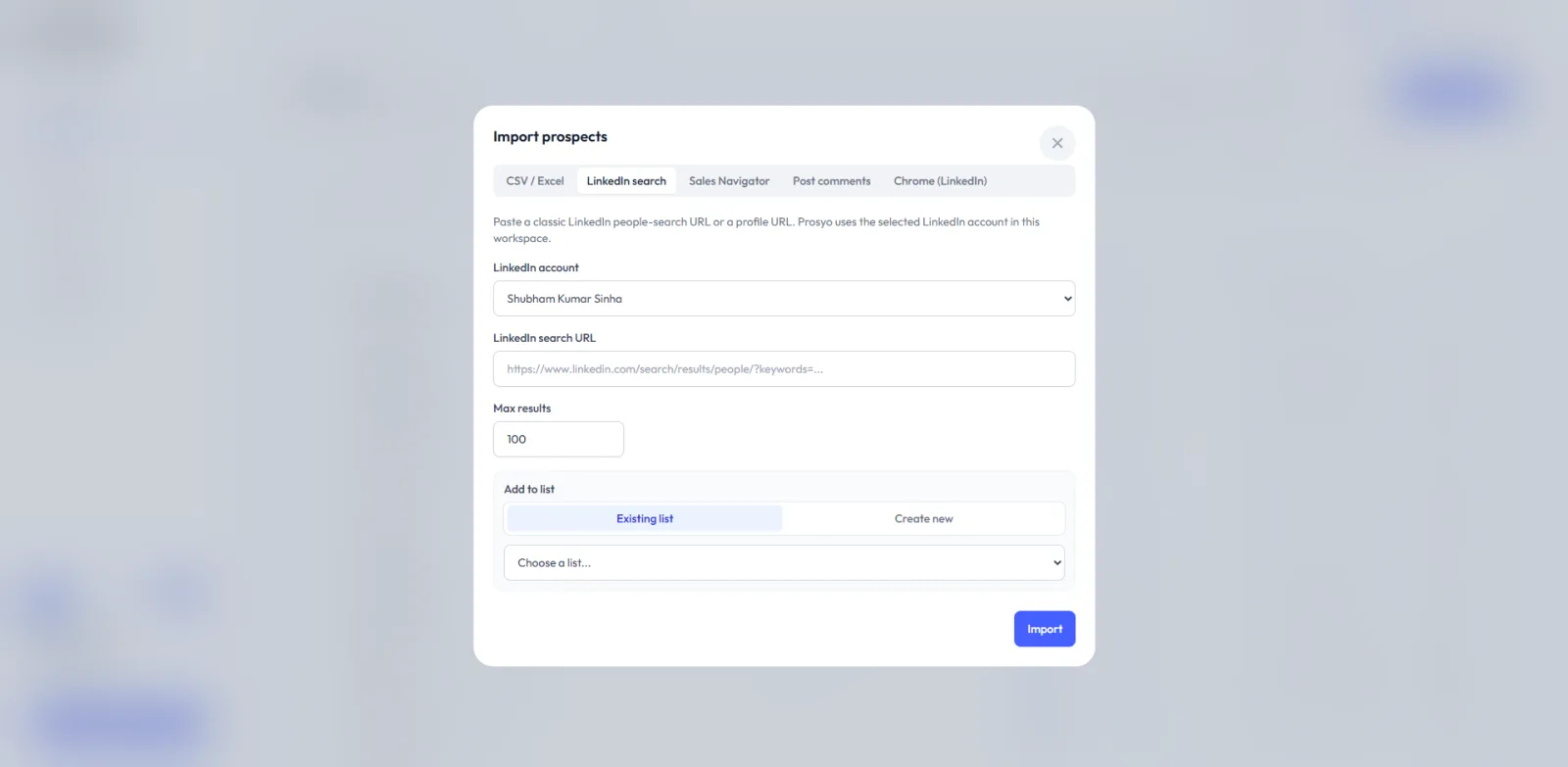
https://www.linkedin.com/search/results/people/?keywords=... - In Prosyo, go to Prospects, click Import and open the LinkedIn search tab.
- Under LinkedIn account, choose the account to use.
- Paste the URL into LinkedIn search URL.
- Set Max results. The default is 100 and the maximum is 1,000 per import.
- Under Add to list, pick an Existing list or Create new (on your first import, just type a name for the new list).
- Click Import.
You can also paste a single profile URL (https://www.linkedin.com/in/...) to import one person.
Import a Sales Navigator search or lead list#
- In Sales Navigator, build a lead search or open a lead list.
- Copy the URL. It starts with
https://www.linkedin.com/sales/. - In Prosyo, go to Prospects, click Import and open the Sales Navigator tab.
- Choose the LinkedIn account, paste the URL into Sales Navigator URL, and set Max results.
- Choose a list under Add to list.
- Click Import.
Sales Navigator gives tighter targeting: seniority, headcount, "changed jobs in the last 90 days", "posted on LinkedIn in the last 30 days". Tighter lists get higher reply rates.
Import people who engaged a post#
Great for event posts, competitor posts or your own viral posts.
- Open the LinkedIn post and copy its URL. It looks like
https://www.linkedin.com/posts/... - In Prosyo, go to Prospects, click Import and open the Post comments tab.
- Choose the LinkedIn account.
- Under Import from, choose Comments or Reactions.
- Paste the LinkedIn post URL and set Max results.
- Choose a list under Add to list.
- Click Import.
See the post engagement playbook for a ready-made sequence.
Import while you browse (Chrome extension)#
The Chrome (LinkedIn) tab explains how to install the Prosyo Chrome extension. With it you don't copy URLs:
- On a LinkedIn people search or a Sales Navigator search, an Export to Prosyo box opens beside the results. Pick or create a list, then export This page only, Next N pages, or All pages (up to 100). Keep the tab open while the pages load. You can click Stop after this page at any time.
- On a profile or Sales Navigator lead page, click Save to Prosyo to save that person.
- On a post, scroll so the comments load, then click the Prosyo button (for example Save 12) to save the people who commented.
- After saving, you can Enrich, Add to a campaign or Open in Prosyo.
See Chrome extension.
What gets imported#
Prosyo stores what LinkedIn actually returns: name, headline or title, company, location, profile URL and photo. It doesn't invent emails or phone numbers. After the import, Prosyo looks for a verified work email for people without one, at no cost. See Enrichment.
Duplicates are matched by LinkedIn profile, so importing the same search twice won't create duplicates. People already in Prosyo are counted as skipped and are still added to the list you chose. Their job title, company and photo are updated to what LinkedIn shows now, and any other missing details are filled in.
Tips for good imports#
- Start from a sharp ICP. See Define your ICP.
- One ICP slice per list. For example, one title family in one region. It keeps messaging relevant.
- Import in batches of 100 to 500 rather than thousands at once.
- 2nd-degree connections accept invites more often than 3rd-degree ones.
- New people count toward your monthly import limit. People already in Prosyo don't. An import stops at what you have left this month. See Import limits.
Troubleshooting#
| Problem | Fix |
|---|---|
| "Connect a LinkedIn account in Settings → Accounts before importing from LinkedIn." | Connect a LinkedIn account in Settings → Accounts. |
| "This is a Sales Navigator URL. Use the Sales Navigator tab." | Paste Sales Navigator links (linkedin.com/sales/...) on the Sales Navigator tab, and classic search links on the LinkedIn search tab. |
| "Sales Navigator is not available on this LinkedIn account." | Choose a LinkedIn account that has Sales Navigator, or import from a classic LinkedIn search. If you connected with a cookie, reconnect and include the Sales Navigator cookie. |
| "Paste a LinkedIn post URL that contains activity, ugcPost, or share." | Open the post itself on LinkedIn and copy its link, not a profile or feed link. |
| "You have reached your plan's monthly import limit…" | Wait for next month, or upgrade. |
| Fewer results than expected | LinkedIn limits how many results a search shows. Split big searches with narrower filters. |
| Import fails or stops | The LinkedIn account may need reconnecting. Check Settings → Accounts. |