


On this page
- What it can do
- What it never does
- Set up (3 minutes)
- 1. Install
- 2. Generate an API token
- 3. Link the extension
- Capture people
- From a people search or Sales Navigator search
- From a profile
- From post comments
- After you save
- From Who viewed your profile
- Save from the popup
- Quota and duplicates
- Manage tokens
- Troubleshooting
- Use the API directly (advanced)
Prosyo: Book Meetings on Autopilot is a Chrome extension that saves people from LinkedIn and Sales Navigator straight into your Prosyo lists, a page or many pages at a time. Enrich them or add them to a campaign without leaving the page.
Install from the Chrome Web Store →
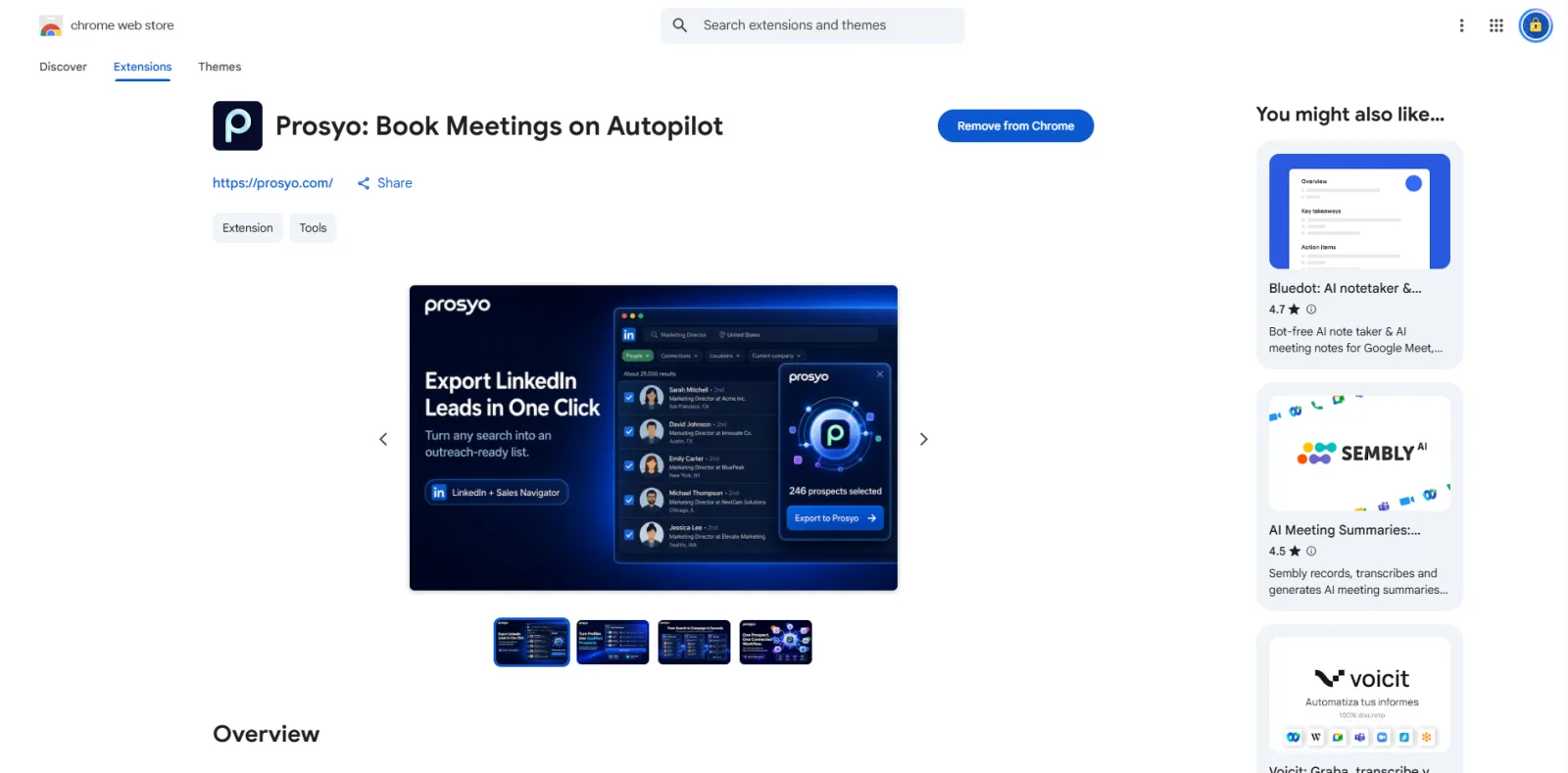
What it can do#
| On this LinkedIn page | You can |
|---|---|
| People search | Export this page of results (up to 100 cards), the next few pages, or all pages (up to 100 pages) |
| Sales Navigator lead search or lead list | Export the same way as a people search |
| Profile / Sales Navigator lead | Save one person. On a LinkedIn profile, see their Intent priority. |
| Post | Save the people who commented |
| Who viewed your profile | Send the viewers you can see to Intent |
After each save you can Add to a campaign, Enrich, or Open in Prosyo.
What it never does#
- Send connection requests, messages or InMail. Sending always happens from your campaigns, under your limits.
- Invent emails, phone numbers or websites.
- Put your Prosyo token on the LinkedIn page. It stays in the extension on your computer.
Set up (3 minutes)#
1. Install#
- Open the Chrome Web Store listing.
- Click Add to Chrome, then Add extension.
- Click the puzzle-piece icon in Chrome's toolbar and pin Prosyo so it's easy to reach.
It also works in other Chromium browsers that support the Chrome Web Store, such as Edge and Brave.
2. Generate an API token#
You need to be a workspace owner or admin to generate a token.
- In Prosyo, go to Integrations and click the Chrome extension & API card. Its details open in a panel on the right.
- Click Generate API token.
- Copy the token now. Prosyo shows it once.
If your workspace already has a token, the button reads Rotate token instead. If you saved that token, use it. Otherwise click Rotate token and paste the new one into every install and tool that used the old one. See Manage tokens.
3. Link the extension#
- Click the Prosyo icon in Chrome.
- Paste the token into API token and click Connect workspace. The token is the only thing you enter.
- The popup shows your workspace, your plan and how many imports are left this month.
Capture people#
From a people search or Sales Navigator search#
- Run a search on LinkedIn or Sales Navigator.
- The Export to Prosyo box opens by itself in the right-hand column. When there's no column, it floats on the right of the page.
- Under Lead list, pick a list, choose + Create a new list…, or leave No list — Prospects only.
- Under Pages to export, choose This page only, Next N pages, or All pages (up to 100).
- Click the export button. It reads Export N to Prosyo for this page, Export N pages, or Export all pages.
When you export more than one page, Prosyo opens each results page in this tab and saves it as it loads, with a progress bar. Keep the tab open while it runs.
- Click Stop after this page to stop early.
- It also stops by itself on the last page of results, or when the monthly import limit is reached.
- When it's done, Export finished shows how many people are in your workspace. Click Export more to run another export.
From a profile#
- Open someone's LinkedIn profile or Sales Navigator lead page.
- Click Save to Prosyo on the page.
- Choose a list and click Save to Prosyo.
On a LinkedIn profile, if the person is in Intent, the extension also shows their priority: High-intent ICP, Warm or Warming up, with their intent and fit scores and their strongest signal. Click it to open them in Intent.
From post comments#
- Open a LinkedIn post and scroll so the comments load.
- Click the Prosyo button on the page. It shows how many commenters it found, for example Save 12.
- Choose a list and click Save to Prosyo.
After you save#
You'll see Saved successfully, then choose:
- Add to a campaign: pick a campaign and click Add.
- Enrich: research the people and fill in the details that can be found. 5 credits per person.
- Open in Prosyo: jump to the prospects.
From Who viewed your profile#
- Open Who viewed your profile on LinkedIn and scroll so the viewers load.
- Click Send N viewers to Intent. Up to 50 viewers are sent at a time, and you'll see Sent to Intent.
The named viewers you can see are added to Intent as profile views. Private viewers are skipped. If this month's Intent people are used up and you have fewer than 10 credits, the extension shows Intent is paused and nothing is collected until you add credits or the month resets.
Save from the popup#
You can also save the current page from the extension popup:
- Click the Prosyo icon in Chrome.
- Choose a list under Save to list (optional), or leave No list — Prospects only.
- Turn on Enrich after save if you want each person enriched straight away (5 credits each). It starts off.
- Click the save button.
The popup also has Settings and Disconnect links at the bottom. The extension's pages follow your browser's light or dark setting.
Quota and duplicates#
- New people count toward your monthly import limit.
- Saving someone who's already in your workspace updates their record and doesn't use quota.
- If the limit is reached during a save, the people who didn't fit are not added, and the extension tells you how many.
Manage tokens#
Click the Chrome extension & API card on Integrations. The panel lists the active tokens with when each was created and last used.
| Button | What it does |
|---|---|
| Rotate token | Issues a new token and revokes every active token in the workspace. Every install must paste the new token. |
| Revoke all tokens | Disconnects every extension install and stops every tool that uses the API token (n8n, Make, Zapier webhooks, your own code) for this workspace |
A token acts as the person who generated it, with their role, and your plan's limits apply. If that person leaves the workspace, the token stops working.
Troubleshooting#
| Problem | Fix |
|---|---|
| No Prosyo button on LinkedIn | Refresh the LinkedIn tab. Check that the extension is turned on at chrome://extensions. |
| "A valid API token is required." or "Click the Prosyo icon in Chrome to connect your workspace." | The token was rotated or revoked, or the extension isn't connected yet. Paste a current token in the popup. |
| "Paste a Prosyo token that starts with psy_." | Copy the whole token from Prosyo and paste it again. |
| Only some people exported | This page only saves the people loaded on the page. Choose Next N pages or All pages (up to 100) to export more. |
| The export stopped early | It stops on the last page of results, when you click Stop after this page, or when the monthly import limit is reached. Keep the tab open while it runs. |
| Import quota reached | Wait for next month, or upgrade your plan. |
Use the API directly (advanced)#
The same token works with the Prosyo API, so tools like n8n, Zapier and Make can add leads too. Base URL: https://app.prosyo.com/api/v1/ext. Send the token as Authorization: Bearer <token>.
| Method | Path | What it does |
|---|---|---|
| GET | /session | Check the token and read your plan and import quota |
| POST | /leads | Add prospects (up to 100 per request) |
| GET | /prospects | Search and read your prospects |
| POST | /enrich | Queue AI research or a first-touch line |
| POST | /bulk | Tag, stage or list prospects in bulk |
| GET | /boards | Lists, tags and pipeline stages |
| GET | /inbox | Latest replies and threads |
| GET | /campaigns | List campaigns |
| POST | /campaigns | Enroll prospects in a campaign |
| GET | /intent | Read a LinkedIn profile's Intent priority |
| POST | /signals | Send buying signals to Intent |
See the full API reference and Custom triggers for examples.