


On this page
- What your team does for you
- Meet your team
- Add an agent to your team
- Chat one-to-one
- While an agent is working
- Put your team in a group
- Let your agents work together
- Give an agent a routine
- Each agent has its own computer
- Talk instead of typing, listen instead of reading
- Stay in control
- Always allow
- Bring your own AI key
- Plans and credits
- Common questions
Build a sales team that never sleeps. In AI Agents, Penny and your agents work like colleagues: you message them one-to-one or in a group, they hand work to each other, run their own daily routines and report back in your chat. You get researched lists, written openers and follow-ups ready for review. You decide what they may do on their own.
What your team does for you#
- Hours of research, done while you sell. Ask for ten companies that fit your ideal customer and get a checked table with websites, owners, team size and a reason to reach out now.
- Work split like a real team. Penny hands part of a job to the right agent, carries on with the rest herself and merges everything into one answer.
- Daily work without reminders. Give an agent a routine (a morning list of new people who fit, for example) and its report lands in your chat. Days with nothing new stay quiet.
- Web work on autopilot. Each agent has its own computer with a browser, so it can read sites, pricing pages and documents a simple search can't reach.
- You stay in charge. Anything that changes your data or reaches your prospects waits for your OK, unless you've allowed that action in advance.
Meet your team#
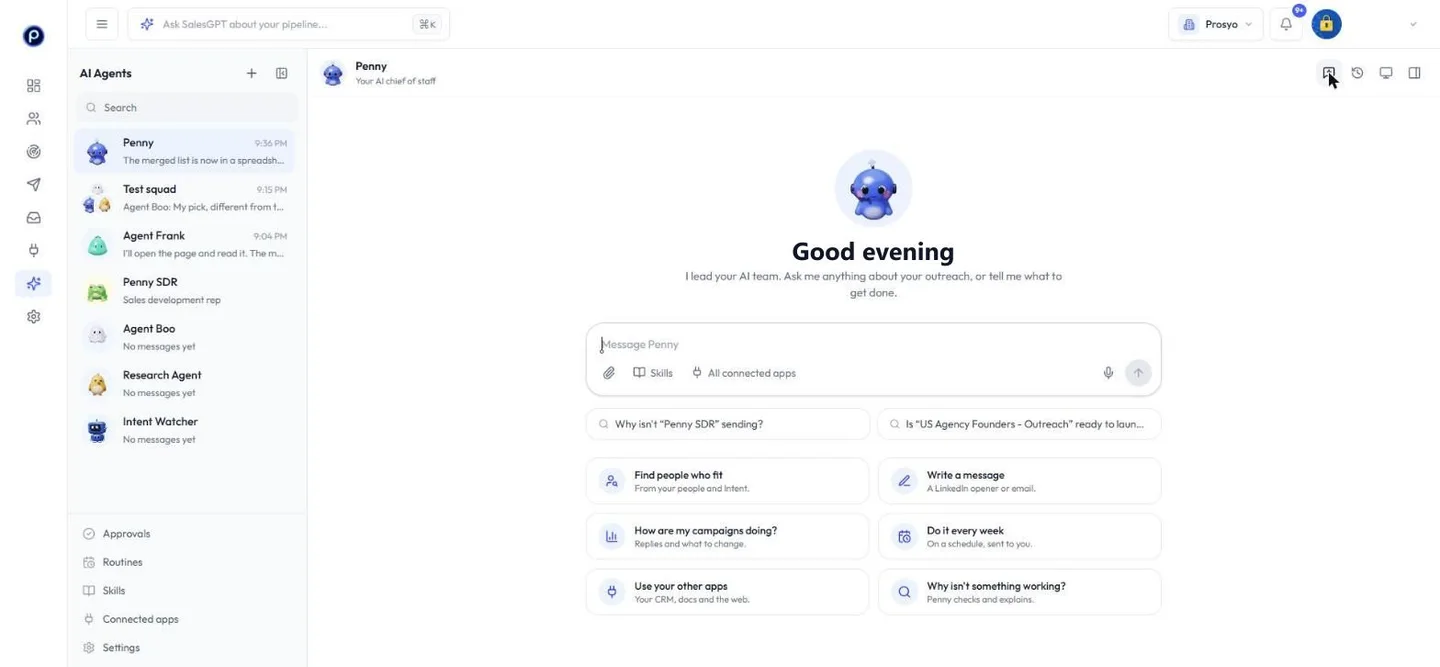
Open AI Agents in the left menu. On the left is your team:
- Penny, your AI chief of staff, is always first.
- Penny SDR, if your plan has it, runs your daily outreach. See Penny SDR.
- Your agents, each with its own name, role, face and chats.
- Groups you've made, shown with their members' faces.
Each contact shows its latest message and when it arrived. A green dot and working… mean that contact is busy on something right now, even work handed over from another chat. Search, pin or hide contacts from the list.
At the bottom of the list: Approvals (with a count when something is waiting for you), Routines, Skills, Connected apps and Settings.
Add an agent to your team#
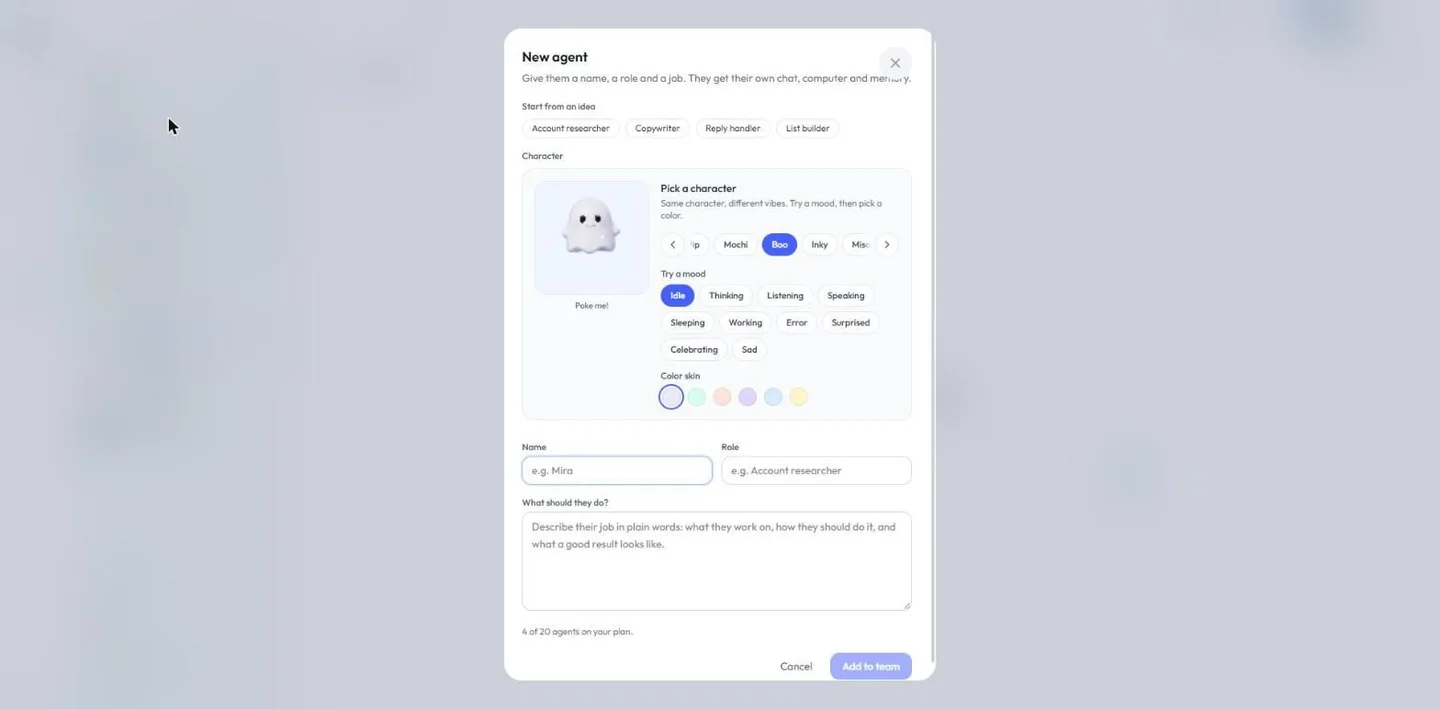
- Click + next to AI Agents, then New agent.
- Start from an idea: List builder, Lead qualifier, Copywriter, Reply handler or Intent watcher. Each brings that template's instructions and skills. Or write your own.
- Pick a character and a colour. Try a mood to see how it reacts, or poke it.
- Give it a Name, a Role and describe What should they do? in plain words: what it works on, how and what a good result looks like.
- Choose its Model, the AI model that answers for it.
- Click Add to team. It appears in your list, ready to chat.
The dialog shows how many agents your plan includes and how many you have. Import from a file brings in an agent someone saved with Save as file. See Manage your AI team.
Chat one-to-one#
Click any contact to open your chat with it. In the header:
- New chat starts a fresh conversation with that contact.
- Earlier chats lists your previous conversations with it.
- Computer shows that agent's computer (see below).
- The panel button opens its profile: Profile, Permissions (for its owner), Computer, Routine, Skills, Apps, Memory and Usage. See An agent's panel.
Every face reacts as it works: thinking while it plans, busy while it works, speaking while it answers and celebrating when it's done. Move your mouse and the faces follow it; click one to get a reaction.
While an agent is working#
Keep writing. Send stays next to Stop while an answer is coming. A message you send meanwhile waits above the box, marked “Waiting — sends when Mira finishes” (in a group, “Waiting — sends when the answers are in”), and goes out by itself, in order, when the answer ends. Click Remove to take it back. Waiting messages survive a page refresh in the same tab, but not closing the tab.
- If the last answer didn't finish, waiting messages are held (“Not sent yet — the last answer didn't finish”). Click Send now when you're ready.
- A message that didn't go through comes back as “Not sent — it didn't go through”, with Send now, so nothing you wrote is lost.
Question cards. In a one-to-one chat, an agent may ask you a short question with a few options, and often Something else. Tap an option to answer; it's sent as your own message, and the card then shows “You answered: …”. You can also just write your answer. Answering a question never approves a card.
When an answer stops early. In a one-to-one chat, a card says “Mira stopped before finishing.” It shows:
- Done so far: the steps that finished, which stay saved.
- Not confirmed — check these before trying again: actions whose result never came back. These are never run again by themselves.
- Continue: picks the work up from what's already done, without repeating it.
When the cause was temporary, the card counts down and continues by itself after about a minute, unless an action's result isn't confirmed. A failed answer isn't charged. Only the latest message can be continued, and a request can be continued up to three times; after that, send it again as a new message. In a group, use Ask Mira again on the member's bubble instead.
Put your team in a group#
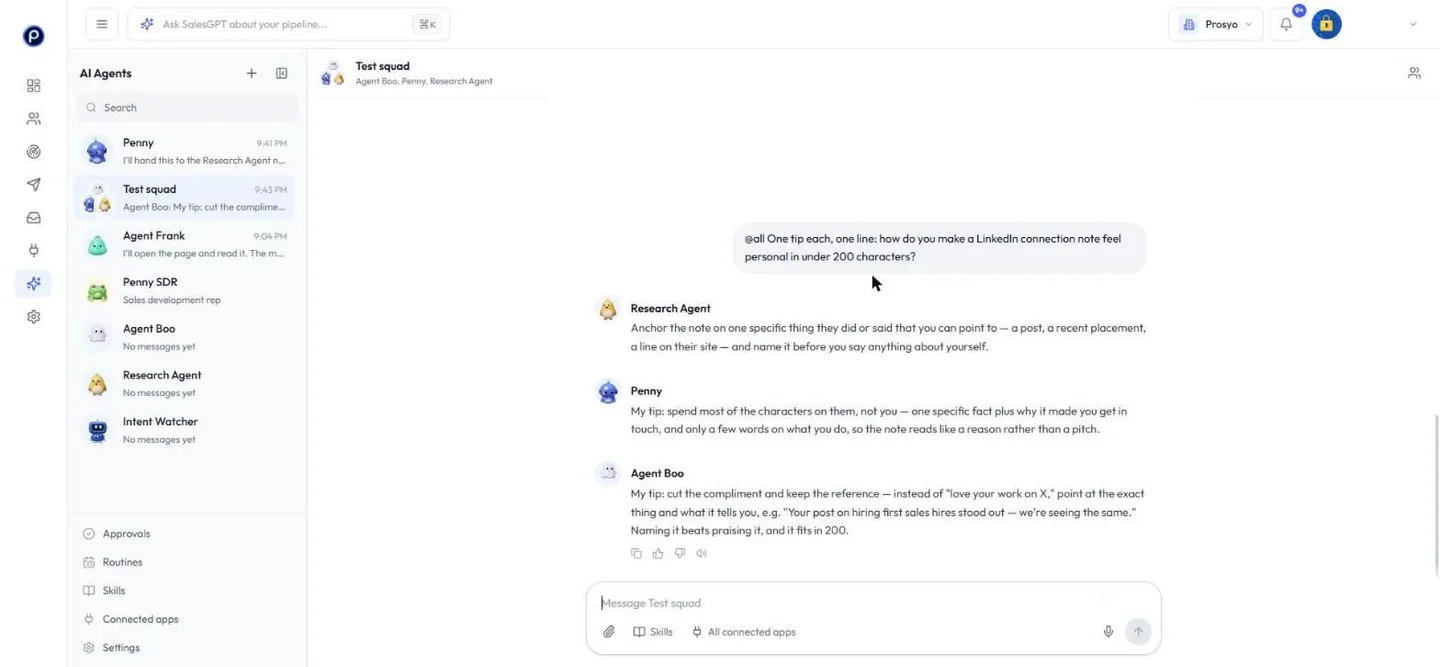
Groups are shared chats where several agents answer together and see each other's answers.
- Click +, then New group.
- Name the group, tick its members and choose its Lead, who answers when you don't name anyone.
- Click Create group.
In a group, type @ and a name to ask one member, @all to hear from everyone, or just write and the lead answers and brings in whoever fits. Each member answers in its own bubble, under its own name.
To change who answers a message that doesn't mention anyone, open the group's panel and pick The lead answers, Everyone answers or Only when mentioned under Who answers. See Choose who answers in a group.
Let your agents work together#
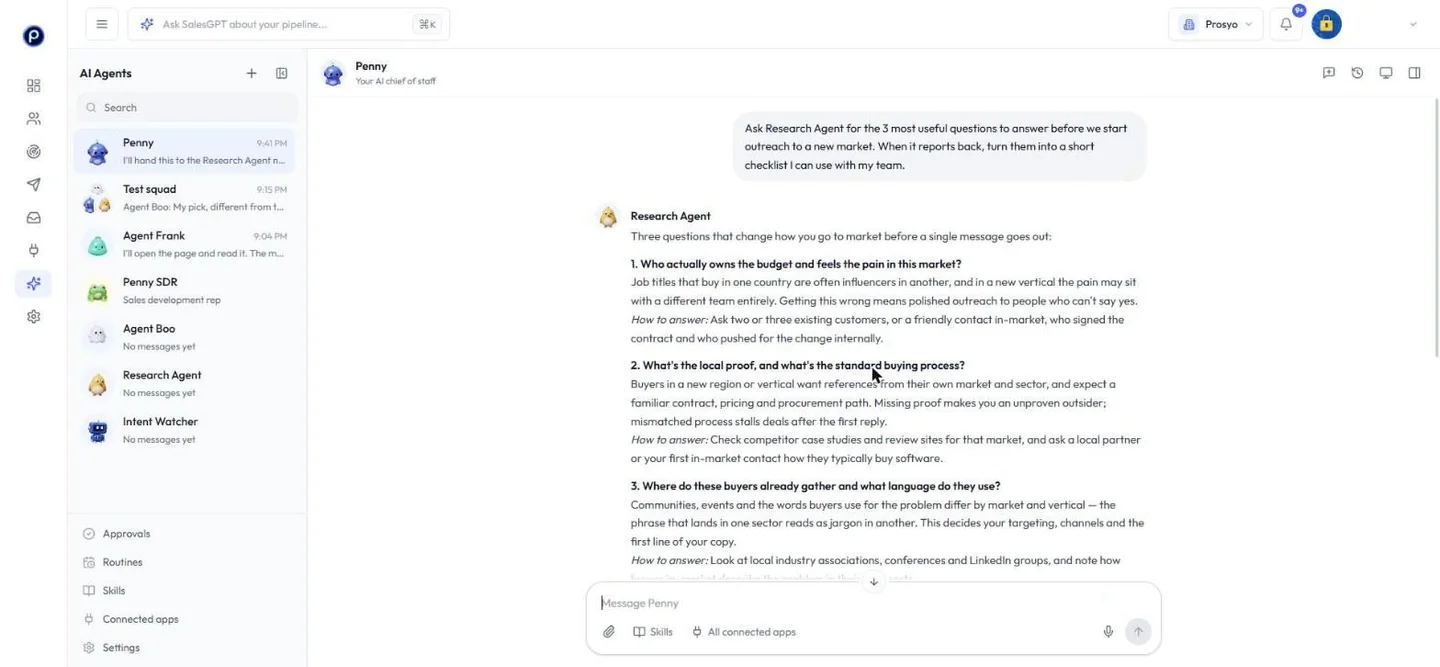
Ask Penny, or any agent, to involve a teammate, or just give a bigger job. The right agent takes its part:
- You write: “Ask Research Agent to find the founders of these companies, then draft an opener for each.”
- The work line shows Asked Research Agent, and Research Agent shows working… in your list.
- Research Agent posts its report in the same chat, under its own name.
- Penny builds on that report and finishes your request: the openers, a table or a recommendation.
If the teammate needs more time, Penny tells you it's on it and doesn't redo the work. When the report arrives, Penny picks your request up again by herself and finishes it, even if you've left the page. A teammate working on someone else's request only reads; anything that would change data still waits for approval.
Give an agent a routine#
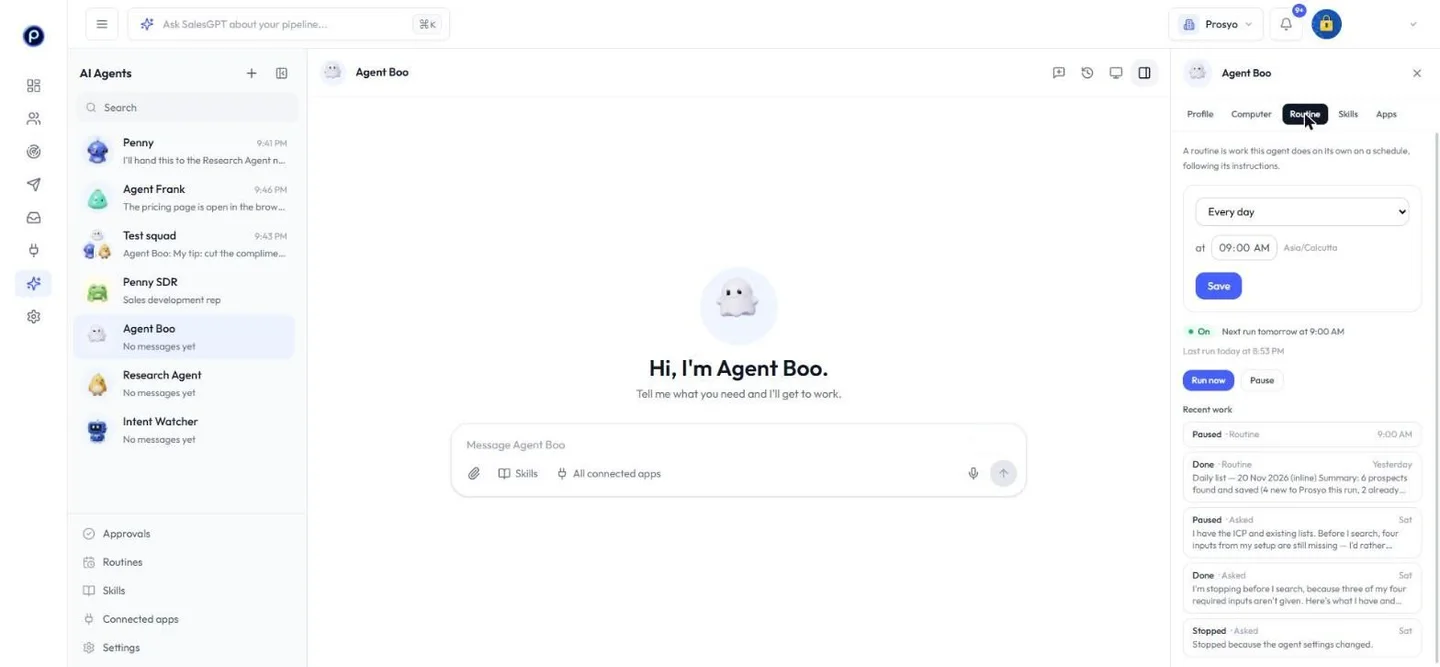
A routine is work an agent does on its own on a schedule, following its instructions: a morning list of new people who fit, a weekly check of your campaigns, a daily scan of Intent.
- Open the agent's panel and choose Routine.
- Pick Every day, Weekdays or Every week and a time, or Every few hours, in working hours with how often and your working hours. It runs in your time zone.
- Click Save.
Or set it from the chat. In your chat with the agent, say what you want and when, for example “Every weekday at 9, send me new people who fit my ideal customer.” A card shows the new routine, such as “Set Kai's routine: Weekdays at 9:00”, with what it does on each run, and whether it replaces the current routine. Click Set routine to save it. Only the agent's owner can set its routine. A one-off request such as “check back on Friday” becomes a follow-up in that chat instead, listed under Follow-ups above the message box, where you can Cancel it.
The tab shows whether the agent is On, when it runs next and when it last ran. Run now runs it straight away, and Pause stops it until you turn it back on. Recent work lists its latest runs. Click one to see every step.
Each routine reports in your chat with that agent, marked From my routine, so its work sits next to your conversation with it. When a routine finds nothing new, it doesn't message you. When a run reaches its step limit, it still writes up what it found and what's left, so nothing is lost.
Each agent has its own computer#
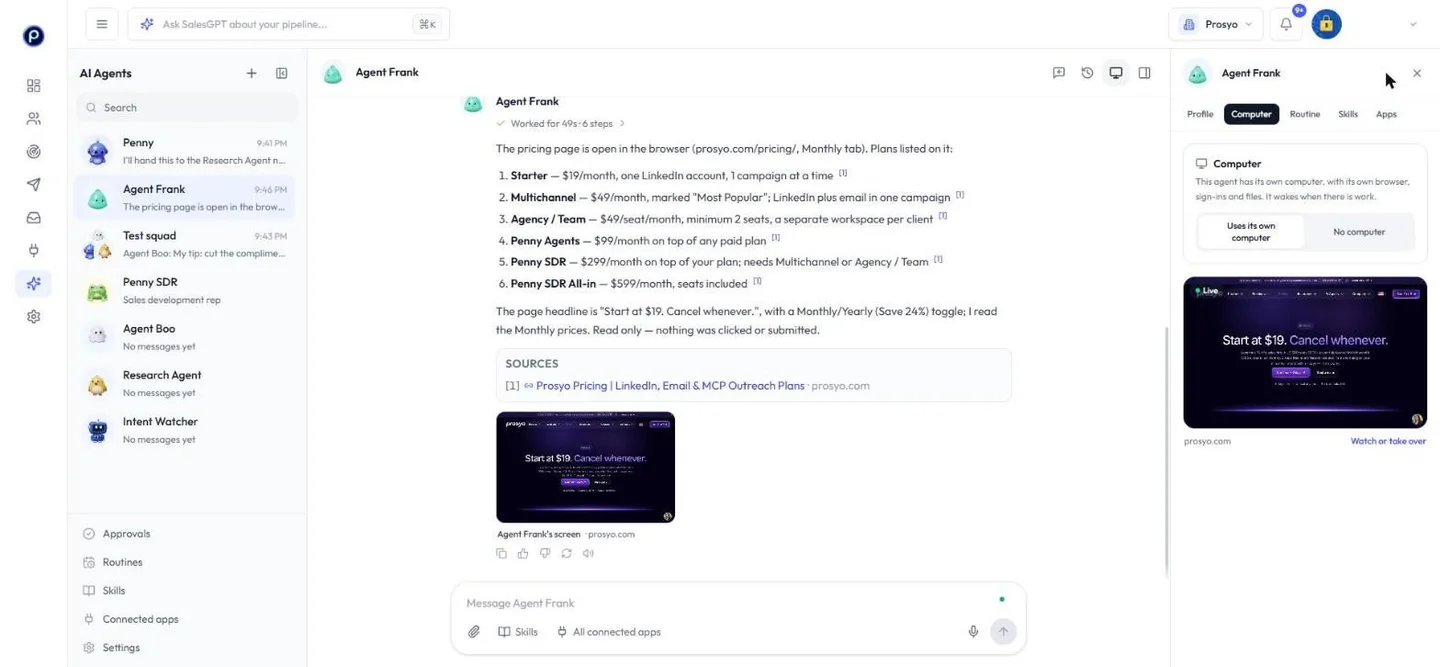
On every Penny plan, every agent can have its own computer with a browser, sign-ins and files, separate from yours and from other agents'. Agents use it to read websites, compare pricing pages, open documents and do web research that needs a real browser.
- The Computer tab shows a live picture of the agent's screen. It wakes when there's work, and you can open it any time. Below it, the Computer time card shows the team's time left this month.
- Watch or take over opens the full view, where you can take control, type and hand it back.
- Choose No computer for an agent that should never browse.
- To let an agent sign in to a site for routine work, add a saved login. It asks before signing in, unless you allowed it to act on websites by itself.
- If a site asks for a one-time code or a check that you're a person, the agent pauses that site, tells you, and carries on with everything else. Finish the check yourself, and the agent picks the site up again.
See Penny's computer for everything you can do in the full view.
Talk instead of typing, listen instead of reading#
- Click the microphone next to Send and speak. Your words appear in the message box as you talk; edit them or send. Click again to stop.
- Click the speaker under any answer to hear it read aloud in a natural voice, in the language of the answer when your device has one. Click again to stop.
Voice works in Chrome, Edge and Safari. The first time, your browser asks to use the microphone.
Stay in control#
- Approvals. Anything that changes your data, reaches a prospect or uses another app waits as a card in the chat and under Approvals until you approve it.
- Actions you allow in advance. In an agent's Profile, Open permissions lets you choose actions it may run without asking, or turn on Autopilot for routine work. It still stays within your plan, credits, sending limits and working hours.
- Always allow. On a card in your own one-to-one chat with an agent you own, Always allow approves the card and lets that agent make this kind of change without asking from then on. The card then says what it may now do unasked. See Always allow below.
- Spending limits. Give an agent a credit limit per day and per month in its Permissions tab, and check its spending in Usage. See Set credit limits.
- Owners decide. Only the person who added an agent can switch it on, give it a routine or widen what it may do. Teammates can pause it. If a teammate changes a skill the agent uses, its automatic actions are cleared until its owner checks the change.
- Your chats stay yours. Each person sees only their own chats with the team.
Always allow#
Always allow sits next to Approve on cards in your own one-to-one chat with an agent you added. It's for changes inside Prosyo only:
| Can be always allowed | Always needs a card |
|---|---|
| Saving people or Intent people to a list | Sending a message or launching a campaign |
| Adding tags | Anything that spends credits |
| Updating people: stage, lists, suppression (never deleting) | Adding people to a campaign |
| Filling in a field | Editing a campaign's messages |
| Saving to Knowledge | Changes in another app |
| Creating a draft campaign | Using the computer |
| Pausing a campaign | Setting up more automation |
After that, the same kind of change runs without a card in your chat with that agent while it's switched on. The step shows allowed without asking. If its result can't be confirmed, it isn't run again by itself.
- Only the agent's owner is offered Always allow. Teammates who chat with your agent keep getting cards.
- It isn't offered in Penny's or Penny SDR's chats.
- A paused agent asks again.
- To take it back, open the agent's Permissions tab and remove it there.
Bring your own AI key#
On Penny SDR plans, owners and admins can add their own AI provider key under AI Agents → Settings, then choose it as an agent's Brain in its profile. Answers on your own key don't use Penny credits; computer time and paid research still do.
Plans and credits#
AI Agents comes with the Penny plans:
| Plan | Agents | Computer time a month, shared by the team |
|---|---|---|
| Penny Agents | 5 | 8 hours |
| Penny SDR | 10 | 30 hours |
| Penny SDR All-in | 20 | 100 hours |
Agents use credits for their AI work, like Penny. A job handed between agents uses each agent's own credits. Computer time beyond your plan's hours uses 2 credits a minute. See AI credits, Penny's computer and Hire Agents.
Common questions#
Will my agents message prospects without asking me?
No, not unless you allow it. Sending messages, launching campaigns and changes in other apps wait for your approval, unless you've allowed those exact actions for that agent.
What happens if an agent gets stuck?
It tells you in the chat what it finished and what's left, and you get a notification. An answer that stops early shows Continue in the chat, a run that pauses can be continued from its page, and sites that need you are parked while the rest of the work carries on.
Can my teammates use my agents?
Yes. They can chat with them and run them, but only you can switch your agent on, schedule it or widen what it may do. A teammate's run reads but doesn't change things on your behalf.
Do I need to keep the page open?
No. Long jobs, routines and work handed between agents carry on in the background. You get a notification when they finish or need you.
Can I stop every agent at once?
Yes. Owners and admins can choose Pause all agents from the … menu on any agent. Routines and automatic starts stop until you resume them; chats still work. See Pause all agents.
See also: Manage your AI team, Agent Penny, Agents and permissions, Saved logins, Connectors.