


On this page
Prosyo normally connects LinkedIn with your email and password in the secure sign-in window. That window has a second option — Cookies — which connects using the session your browser is already signed in with.
Nothing logs in again, so LinkedIn has no reason to send a code, ask for an app approval, or show a security check. Everything after connecting is identical: the same campaigns, the same Inbox sync, the same imports.
When to use this instead of email and password#
| What you're seeing | Why cookies fix it |
|---|---|
| "An additional step seems necessary to complete login" | LinkedIn wants a check it can only show you on linkedin.com. Your browser has already passed it. |
| "LinkedIn can't accept any more requests" | LinkedIn is rate-limiting sign-ins for your account, and every retry extends the limit. Cookies aren't a sign-in. |
| A code or app approval that never arrives | No code is needed. |
| Your authenticator app or phone isn't with you | No second factor is asked for. |
| The account connects, then drops within minutes | A session LinkedIn already trusts is more stable than a fresh login. |
| You manage a client's LinkedIn and they won't share a password | They can send cookie values instead — see Agencies and clients. |
If you're not hitting any of these, connect the normal way. See Connect LinkedIn.
What you need#
| Cookie | What it is | When you need it |
|---|---|---|
li_at | Your LinkedIn session | Always |
li_a | Your premium session | Only for Sales Navigator or Recruiter — imports and searches from those tools |
Treat li_at like your LinkedIn password. Anyone holding it can act as you on LinkedIn until you sign out of all sessions.
Before you start#
- Sign in to https://www.linkedin.com in the browser you use every day, on the computer you'll connect from.
- Use a normal window, not private/incognito — an incognito session dies when you close the window, and takes the connection with it.
- Finish anything LinkedIn is showing you there: a security check, confirming your email or phone, a "is this you?" prompt. Copy the cookie only once your feed loads normally.
- Do the copying and the pasting in the same browser on the same computer. LinkedIn ties a session to the browser that created it, and the sign-in window records that browser when you paste.
Find the cookies in your browser#
Chrome, Edge, Brave, Arc, Opera#
- Open https://www.linkedin.com and make sure you're logged in.
- Right-click anywhere on the page and choose Inspect, or press
F12(Mac:⌥⌘I). Developer Tools opens. - Open the Application tab along the top. If you can't see it, click the » at the end of the tab strip and pick it from the list.
- In the left sidebar, under Storage, expand Cookies and click **https://www.linkedin.com**.
- A table of cookies appears. In the Filter box just above it, type
li_at. - Click the
li_atrow. Its full value appears in the panel at the bottom — it's a long string of letters, numbers and symbols, usually 150+ characters. - Copy the whole value: right-click the row and choose Copy value, or click into the bottom panel, select everything (
Ctrl+A/⌘A) and copy. - Using Sales Navigator or Recruiter? Clear the filter, type
li_a, and copy that value the same way.
li_at and li_a look similar in a list. Read the Name column carefully — li_a is not the first three characters of li_at, it's a separate cookie.
Firefox#
- Open https://www.linkedin.com and make sure you're logged in.
- Press
F12(Mac:⌥⌘I) to open Developer Tools. - Open the Storage tab. If it isn't visible, click » at the end of the tab strip.
- Expand Cookies in the left sidebar and click **https://www.linkedin.com**.
- Type
li_atin the Filter Items box. - Double-click the Value cell of the
li_atrow to select the whole value, then copy it. You can also right-click the row and choose Copy Value. - Repeat with
li_aif you use Sales Navigator or Recruiter.
Safari (macOS)#
- Turn on developer features once: Safari → Settings → Advanced → tick Show features for web developers.
- Open https://www.linkedin.com and make sure you're logged in.
- Choose Develop → Show Web Inspector, or press
⌥⌘I. - Open the Storage tab, then Cookies in the left sidebar, then linkedin.com.
- Find the
li_atrow, double-click its Value, and copy it. - Repeat with
li_aif you use Sales Navigator or Recruiter.
Copy the value only — no quotation marks, no li_at= in front, no spaces at either end. A single stray character makes the session invalid.
Paste them into Prosyo#
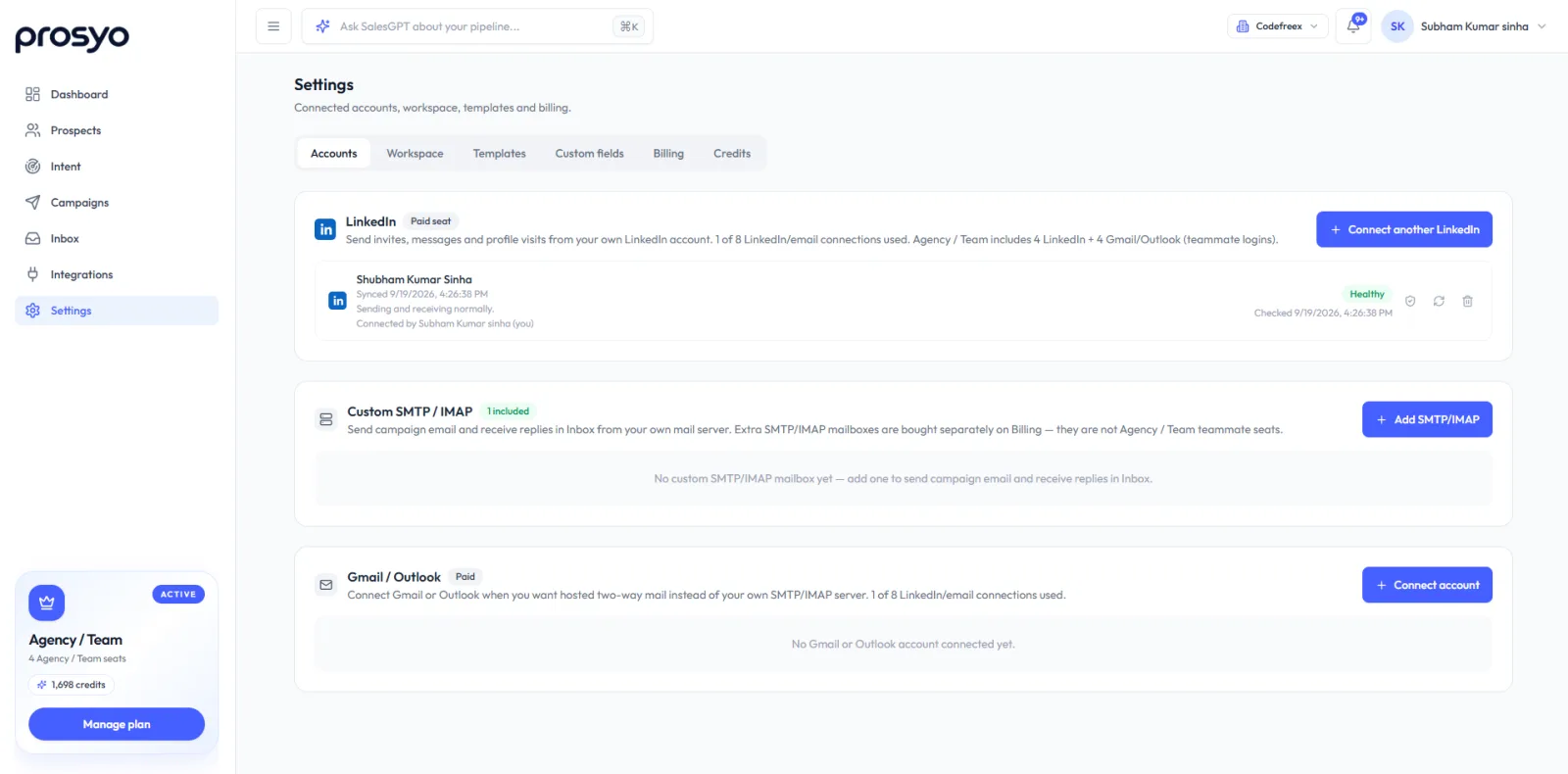
- Go to Settings → Accounts.
- Click the button for what you're doing:
- Connect LinkedIn — your first LinkedIn account.
- Connect another LinkedIn — an extra sender, on a plan or seat that allows one.
- Reconnect LinkedIn — an account showing Needs reconnect.
- Finish connection — an attempt you started earlier and didn't complete.
- The secure sign-in window opens. Choose Cookies instead of entering an email and password.
- Paste your
li_atvalue. Addli_aas well if you use Sales Navigator or Recruiter. - Submit. The window closes and the account shows Connecting.
- Wait for Healthy — usually under a minute. The page refreshes by itself.
Don't launch a campaign until the account shows Healthy. See Account health.
Your cookie goes into the secure sign-in window, never into a Prosyo form, and Prosyo never shows it back to you. Prosyo keeps only the session it needs to act for you.
Keep the connection alive#
A cookie session lasts for months, but a few actions end it immediately:
| Action | Effect |
|---|---|
| Signing out of LinkedIn in that browser | Ends the session. Closing the tab or quitting the browser is fine — only signing out breaks it. |
| Changing your LinkedIn password | Ends every session, including this one. |
| Sign out of all other sessions on LinkedIn | Ends it. |
| Copying from a private/incognito window | Ends when that window closes. |
| Your device being wiped or the browser profile deleted | Ends it. |
When the session ends, the account moves to Needs reconnect, campaigns stop sending from it instead of failing, and you get a notification. Copy a fresh li_at and reconnect the same way.
If you change your LinkedIn password on purpose, reconnect straight afterwards so nothing waits in a queue.
If it doesn't work#
| What happens | What to do |
|---|---|
| The window says the cookie is invalid | You probably copied a partial value. Copy it again, making sure you take the entire string with nothing before or after it. |
| It connects, then goes to Needs reconnect within minutes | You signed out of LinkedIn in that browser, or copied from an incognito window. Sign in normally, copy again, reconnect. |
| Sales Navigator imports fail but LinkedIn works | li_a is missing or expired, or the Sales Navigator subscription has lapsed. Reconnect with both cookies. See Import from LinkedIn. |
You can't find li_at in the list | You're not signed in to LinkedIn in that browser, or you're looking at a different site's cookies. Check that **https://www.linkedin.com** is selected on the left. |
| There's no Application or Storage tab | The tab strip is too narrow. Click » at its end, or widen the Developer Tools panel. |
| A work laptop blocks Developer Tools | Copy the cookie on a personal device you're also signed in on, and paste it from that same device. |
| The account still won't connect | The sign-in limit may still be running from earlier attempts. Wait a few hours without retrying, then connect with cookies once. See Troubleshooting. |
Agencies and clients#
If you run outreach from a client's LinkedIn account:
- The safest option is to have the client paste their own cookie: give them a teammate seat and this page. See Team seats and invites.
- If they send you the value, use a password manager's secure share or a one-time secret link — never plain email, chat or a screenshot.
- Ask them not to sign out of LinkedIn in that browser afterwards, and to tell you if they change their password.
- One LinkedIn account per seat. Two people should not connect the same LinkedIn account twice in one workspace.
Security#
li_atis the key to your LinkedIn account for as long as the session lives. Handle it like a password.- Paste it only into the Prosyo sign-in window that opens from Settings → Accounts. It is served from
auth.prosyo.com. If a page anywhere else asks for your LinkedIn cookie, don't paste it. - To revoke access at any time: LinkedIn → Settings & Privacy → Sign in & security → Where you're signed in → Sign out of all other sessions. Every cookie session, including Prosyo's, stops working straight away.
- Prosyo support will never ask you for a cookie value.
Related#
- Connect LinkedIn — the normal email-and-password route
- Account health and reconnecting — what each status means
- Optimize your LinkedIn profile — before you start sending
- LinkedIn limits explained — safe daily volumes








