On this page
You don't have to write a sequence from scratch. Prosyo gives you four fast starts:
| Fast start | Where | What you get | Credits |
|---|---|---|---|
| One-click campaign | Settings → Templates → Library | A draft campaign with every step and message already written | Free |
| Use a template | Campaigns → New campaign | The same proven sequences, named your way | Free |
| Generate with AI | Campaigns → New campaign | A full sequence written from your prompt | 1 |
| Premade message templates | Settings → Templates → Library | Proven invites, messages and emails added to your templates | Free |
Then fine-tune any step with Write with AI or Improve with AI in the sequence builder.
Everything starts as a draft. Nothing is sent until you add an audience, click Review & launch and confirm.
1. One-click campaigns#
The quickest way to a ready-to-launch sequence.
- Go to Settings → Templates and open the Library tab.
- Under One-click campaigns, browse the proven sequences. Each shows its steps as a small funnel, how many days it runs and how many steps it has.
- Click Use this campaign.
- Prosyo creates a draft campaign with the steps already built and opens it.
- Read every message and change what doesn't sound like you. On Sending & safety, check the Timezone and working hours: one-click campaigns start in UTC. Then add your audience and launch.
Available blueprints:
| Blueprint | Steps | Channels |
|---|---|---|
| LinkedIn connect & follow up | Profile visit → connection request → two follow-up messages after they accept | |
| Email sequence | Three emails with sensible gaps | |
| Multichannel: LinkedIn + email | Warm up on LinkedIn, then alternate LinkedIn messages and email | LinkedIn + email |
| Voice note after connecting | Visit → connection request → short message → voice note → follow-up | |
| Show the proof (image first) | Connection request → message carrying one image of a result → follow-up | |
| Voice note, proof, then email | Connect → voice note → message with an image → email to anyone who didn't reply | LinkedIn + email |
The three rich-media blueprints bring the flow and the copy; you add your own recording and image on the step. See voice notes and images.
The library also has five sequences whose names start with Intent:. They're written around research lines, with fallbacks, for people found by Intent. See Intent-led campaigns.
2. Use a template when creating a campaign#
- Go to Campaigns → New campaign.
- Enter a Campaign name and check the Sending timezone.
- Under How do you want to start?, choose Use a template.
- Pick a sequence. Each card shows its Channels.
- Click Create & open builder.
3. Generate a sequence with AI from a prompt#
Describe what you want in a sentence or two, and AI writes every step.
- Go to Campaigns → New campaign.
- Enter a name and timezone.
- Choose Generate with AI.
- In What should this campaign achieve?, write your prompt (up to 1,200 characters).
- Click Create & open builder. AI drafts the steps and copy from your prompt, your ICP and your workspace AI instructions. This costs 1 credit.
- You land on the Sequence tab with the draft. Review and edit everything before launch.
What a good prompt includes#
| Include | Example |
|---|---|
| Who | Heads of Sales at 20–200 person B2B SaaS companies in the UK |
| The problem | They lose hours on manual prospecting |
| Your offer | We book meetings on LinkedIn without hiring more SDRs |
| The goal | A 15-minute intro call |
| Channels | LinkedIn first, then email if they don't accept |
| Tone | Friendly, peer-to-peer, short, no hype |
Example prompts#
LinkedIn only
Book discovery calls with heads of sales at 20–200 person B2B SaaS companies. Lead with the time they lose on manual prospecting. LinkedIn only: visit, connect with a short note, then 3 follow-ups over 2 weeks. Casual and short.
Multichannel
Reach marketing directors at e-commerce brands in the UAE doing $5M+ revenue. We run paid social for D2C brands. Start with a profile visit and a like on their recent post, then connect. If they don't accept within a week, switch to email. Goal: a 20-minute audit call. Confident, no buzzwords.
Agency client
Write a sequence for our client, a cybersecurity consultancy, targeting CTOs at 50–500 person fintechs in Europe. Mention the new DORA regulation. 2 LinkedIn messages and 2 emails. Formal but warm. End with an offer of a free readiness checklist.
Event follow-up
People who attended our webinar on RevOps last week. Thank them for joining, share the recording link, and ask what their biggest RevOps challenge is. LinkedIn connect, then 2 messages. Very short.
The more specific your ideal customer profile in Settings → Workspace, the better AI writes. Put your tone and "never say" rules in Outreach / AI instructions once, and every AI draft follows them.
4. Add premade message templates#
Prosyo includes proven message copy you can add to your own templates in one click.
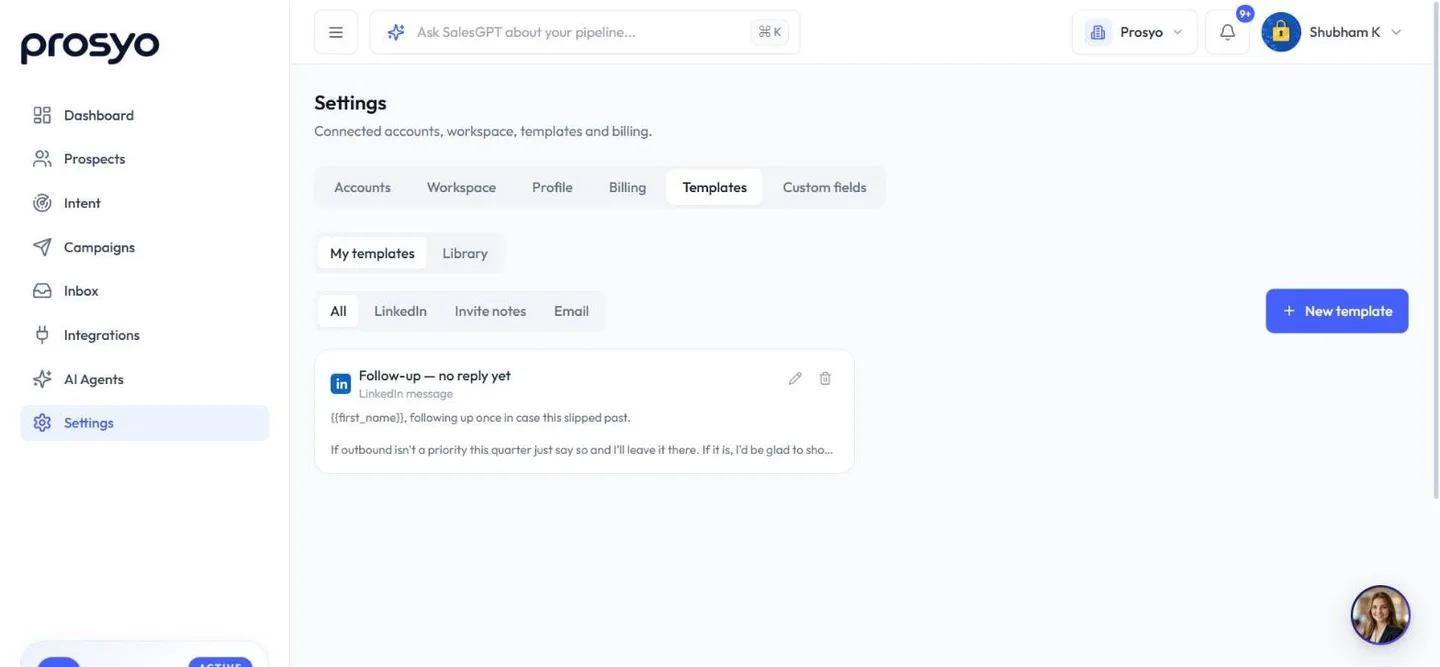
- Go to Settings → Templates → Library.
- Under Premade outreach templates, filter by channel if you like.
- Click Add on a template, or Add all to add every one in the current filter.
- Edit the copy in My templates so it sounds like you.
| Template | Channel | When to use it |
|---|---|---|
| Invite — shared context | Invite note | Opens on what you have in common rather than a pitch |
| Invite — short and plain | Invite note | Highest accept rate. No hook, no pitch, under 200 characters. |
| Invite — after engaging with a post | Invite note | After liking or commenting, so your name is already familiar |
| First message after they accept | A day after they accept. Asks a question, not for a meeting. | |
| Follow-up — no reply yet | Three to four days after the first message. Gives an easy out. | |
| Last message — close the loop | The final touch. Often the one that gets the reply. | |
| Cold email — problem first | Leads with the problem and keeps the ask to one line | |
| Email follow-up — add something | A second touch that gives before it asks again | |
| Email — direct meeting ask | For warm prospects who already engaged |
Insert any template into a step with Insert from template... in the sequence builder. See Message templates.
5. Write or improve any step with AI#
Inside the sequence builder, connection request, LinkedIn message, InMail, email and comment steps have an AI button. (A voice note step doesn't: the recording is the message.)
| Button | When it shows | What it does |
|---|---|---|
| Write with AI · 1 credit | The step is empty | Drafts the step from your ICP, your workspace AI instructions and the rest of the sequence |
| Improve with AI · 1 credit | The step has text | Rewrites your text to be clearer and easier to read, keeping what it says |
Next to the button is an optional box for what AI should focus on. On an empty step it asks "Optional: what should this step say?". On a step with text it asks what to change, for example "shorter, mention the free audit".
How the writer works:
- It reads the whole sequence and where this step sits in it, so a follow-up doesn't repeat what earlier steps already said.
- Your own draft is the starting point. Its offer, facts, links and variables are kept.
- It only uses variables Prosyo can fill, and it's asked to stick to the facts in your draft, your brief and your workspace profile. AI can still get things wrong, so read every draft.
In a campaign fed by Intent, or one that already uses research lines, the writer uses the research lines with sensible fallbacks, for example {{research.icebreaker|Hi {{first_name}},}}. It still costs 1 credit, and you should always read it before launch. See Intent-led campaigns.
For Comment on recent post steps, tick Generate by AI. Prosyo reads the prospect's post at send time and writes a relevant comment using your AI instructions (1 credit per comment).
6. Build it in Claude or ChatGPT#
If you've connected Claude or ChatGPT, you can ask:
Create a LinkedIn connect sequence for APAC CMOs from the LinkedIn connect template, then preview it with a real prospect.
The draft appears in Campaigns straight away. Launching still needs your confirmation.
If your workspace has AI Agents, you can also ask Agent Penny to create a campaign or rewrite its steps. Each change shows as a card in the chat, and nothing changes until you approve it. See Edit with Agent Penny.
Before you launch any fast-start sequence#
- Read every step out loud. Does it sound like a person?
- Replace any generic line with something specific to this audience.
- Add fallbacks:
{{first_name|there}},{{company_name|your team}}. - If you use
{{calendar_link}}, add your Booking link in Settings → Workspace. - Click Preview with a real person and check two or three people.
- Set sending limits.
- Check the timezone and working hours on Sending & safety.